
If you are searching for power bi pro cost, you are probably trying to answer a practical buying question: how much will Power BI Pro actually cost for my team, not just for one user?
The short answer is simple: Power BI Pro costs $14 per user per month, paid yearly based on Microsoft’s current public pricing page. But the real decision gets more complex as your team grows, because collaboration, sharing, viewing access, and future expansion all affect total cost.
In this guide, we will break down:
- The Power BI Pro price per user
- What a Pro license includes
- Team pricing for 3, 10, 25, and 100 users
- When Free, Pro, Premium Per User, or capacity-based options become relevant
- The extra cost factors teams often overlook

How much does Power BI Pro cost for a team?
Power BI Pro costs $14 per user/month, paid yearly. That means your total team cost scales directly with the number of licensed users.
Quick Comparison Table
| Team Size | Monthly Cost | Annual Cost |
|---|---|---|
| 3 users | $42 | $504 |
| 10 users | $140 | $1,680 |
| 25 users | $350 | $4,200 |
| 100 users | $1,400 | $16,800 |
This pricing model is easy to estimate at small scale because the math is straightforward:
- Monthly total = number of users × $14
- Annual total = monthly total × 12
What matters is understanding who needs a Pro license. In most standard Power BI collaboration scenarios, the users who publish, share, collaborate, and consume shared content typically need the appropriate license. That is why a small pilot can stay affordable, while a broad internal rollout can grow quickly in cost.
A Power BI Pro license is generally designed for:
- Publishing reports to the Power BI service
- Sharing dashboards and reports with other licensed users
- Team collaboration in shared workspaces
- Scheduled refresh for cloud-based reporting workflows
- App sharing and internal analytics distribution
What Pro does not automatically solve is every enterprise distribution scenario. If you need broader viewer access, larger-scale capacity, or advanced enterprise features, teams often start evaluating Premium Per User or capacity-based Fabric/Premium options.
This guide focuses on four common pricing scenarios:
- 3 users
- 10 users
- 25 users
- 100 users
These examples give you a practical way to estimate whether Pro still fits your needs as headcount grows.
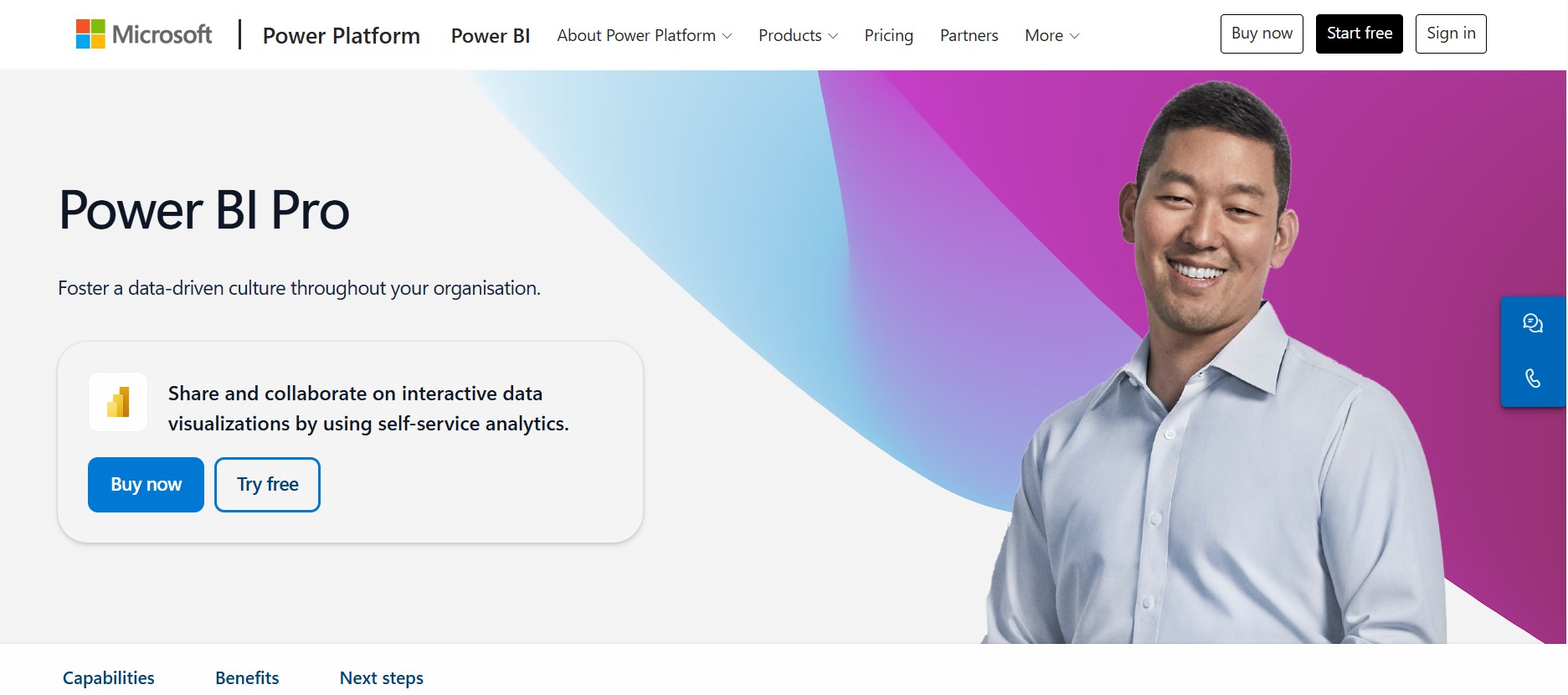
Team pricing scenarios for 3, 10, 25, and 100 users explained
Scenario 1: Cost for a 3-user team
For a 3-user team, the calculation is simple:
- Monthly total: 3 × 14 = 42 USD/month
- Annual total: 42 × 12 = 504 USD/year
A 3-user setup is often a good fit for:
- A small analytics team
- A manager and two analysts
- A pilot project inside one department
- Early dashboard collaboration before wider rollout
At this size, Power BI Pro is often enough if your use case is mainly:
- Creating reports
- Publishing dashboards
- Sharing internally among a small licensed group
- Collaborating in a shared workspace
For example, if a finance lead, an analyst, and an operations manager all need to create and review dashboards together, Pro can be a reasonable entry point.
What to watch closely is whether additional viewers will be added soon. A 3-user team rarely stays at 3 users if the reports become useful to executives, sales managers, or regional teams.
Scenario 2: Cost for a 10-user team
For a 10-user team, the cost becomes:
- Monthly total: 10 × 14 = 140 USD/month
- Annual total: 140 × 12 = 1,680 USD/year
This is a common size for a growing department such as:
- Finance
- Sales operations
- Supply chain
- Marketing analytics
- Business performance management
At 10 users, teams often begin using Pro more actively for:
- Scheduled refresh
- App sharing
- Workspace collaboration
- Cross-functional dashboard access
- Repeated distribution of reports to department stakeholders
This is also where the licensing conversation becomes more practical. A team may start with only a few creators, but if all 10 users need to interact with shared content in the service, the total license count matters.
Power BI Pro can still be a very workable option here, especially if:
- The audience is internal
- The user count is still controlled
- The data models stay within standard Pro-oriented limits
- The team does not yet need more advanced premium features
Scenario 3: Cost for a 25-user team
For a 25-user team, the estimated spend is:
- Monthly total: 25 × 14 = 350 USD/month
- Annual total: 350 × 12 = 4,200 USD/year
At this stage, Power BI Pro is no longer just a small-team tool. It becomes a departmental platform with more formal management needs.
A 25-user rollout is common when:
- Multiple analysts and managers use the same reporting environment
- Several functions need access to dashboards
- Teams publish recurring reports for operational reviews
- Admins begin standardizing workspaces and permissions
This is where administrators should start reviewing:
- Workspace structure
- Role-based permissions
- Dataset ownership
- Governance standards
- Content certification and reuse
Power BI Pro may still be cost-effective at 25 users, especially if most users need active collaboration. But the organization should now think beyond the license fee itself and consider operating model questions:
- Who owns semantic models?
- How many reports are duplicated across teams?
- Which users are creators versus viewers?
- Is broader distribution likely within the next 6 to 12 months?
Scenario 4: Cost for a 100-user team
For a 100-user team, the total becomes:
- Monthly total: 100 × 14 = 1,400 USD/month
- Annual total: 1,400 × 12 = 16,800 USD/year
This is the point where the power bi pro cost discussion usually becomes strategic rather than tactical.
At 100 users, many organizations begin comparing:
- Per-user licensing
- Premium Per User for select advanced users
- Capacity-based options
- Microsoft Fabric-related licensing paths
A 100-user environment often includes mixed personas such as:
- Report creators
- Department managers
- Executives
- Operational viewers
- Regional stakeholders
The key question is no longer just “What is Pro per user?” It becomes:
How many people truly need a paid per-user collaboration license, and how many mainly need to consume reports?
If most of the 100 users need active collaboration, Pro can still be valid. But if the audience keeps expanding, capacity-based pricing may enter the conversation because it can change how distribution works at scale.
Power BI Free vs Pro vs Premium: key differences that affect cost
What each plan is designed for
The most important thing to understand is that Power BI Desktop and Power BI licensing are not the same thing.
Here is the practical distinction:
| Plan | Designed For | Typical Use |
|---|---|---|
| Free / Desktop | Personal use and report creation | Build reports locally, learn the tool, prototype analysis |
| Pro | Team collaboration and sharing | Publish, share, collaborate, and consume shared content in business teams |
| Premium Per User | Advanced per-user analytics needs | Larger models, more frequent refresh, advanced enterprise features for specific users |
| Capacity-based Premium/Fabric options | Enterprise distribution and scale | Large-scale content distribution, dedicated capacity, broader organizational deployment |
In everyday terms:
- Authoring means creating reports and models
- Sharing means publishing and distributing content to others
- Consuming means viewing and interacting with shared reports
The cost impact comes from how many people need each of those roles.
When Premium becomes part of the conversation
Premium usually enters the discussion when organizations need more than standard Pro collaboration.
Common triggers include:
- Larger audiences
- Bigger datasets
- More frequent refresh requirements
- Enterprise-scale reporting
- Dedicated capacity planning
- Broader content distribution across the company
Many buyers ask whether a fixed monthly Premium price makes more sense than paying per user. The answer depends on usage shape, not just user count.
If your organization has a relatively small number of creators but a much larger audience of consumers, capacity-based licensing may become worth evaluating. If your user base is more balanced and most users collaborate directly, Pro can remain practical longer.
Because Microsoft’s licensing landscape now overlaps with Fabric capacity discussions, teams should evaluate not just today’s report-sharing need, but the likely reporting footprint one year from now.
What changes the real cost beyond the base license price?
Power BI Desktop, Pro, and Premium differences in everyday use
Many teams underestimate costs because they focus on the free desktop tool first.
In practice:
- Power BI Desktop is the report creation environment
- Power BI Pro governs publishing, sharing, and collaboration
- Premium Per User adds higher-end features for specific users
- Capacity-based licensing changes the enterprise hosting and distribution model
That means the desktop app alone does not tell the full cost story. You may be able to build a strong report for free, but the moment your team wants governed sharing and repeated business use, licensing becomes part of the operating model.
Extra pricing factors teams often miss
Beyond the base Power BI Pro subscription, teams often overlook these planning factors:
- Annual commitment structure: Public pricing may be shown as paid yearly, which affects procurement planning.
- Viewer access requirements: A rollout can become more expensive if many consumers also need licensed access.
- Admin overhead: More users usually mean more governance, permissions management, and workspace administration.
- Growth planning: A 10-user project can become a 50-user deployment faster than expected.
- Premium feature evaluation: Some advanced needs can move a subset of users into Premium Per User.
- Fabric licensing discussions: As Microsoft aligns more analytics workloads under Fabric, BI purchasing decisions may expand beyond Pro alone.
These are not always direct line-item software costs, but they absolutely shape total cost of ownership.
How to estimate your total with a simple cost calculator approach
A practical cost calculator approach can help you avoid underestimating spend.
Step 1: Count report creators
Start with the number of users who will:
- Build reports
- Publish dashboards
- Manage workspaces
- Maintain datasets
These are your core BI producers.
Step 2: Count active viewers
Next, estimate how many people need to:
- Access shared dashboards
- Review reports regularly
- Interact with published content
- Use apps or workspace content
This step matters because many teams initially budget for creators only, then discover the viewer population drives cost.
Step 3: Separate advanced users
Identify whether some users need more than Pro, such as:
- Larger semantic models
- More frequent refreshes
- Advanced premium capabilities
If yes, they may need a different plan than standard Pro.
Step 4: Model 6- to 12-month growth
Add expected expansion:
- New departments
- Executive access
- Regional rollout
- Additional business units
This prevents a “surprise license jump” after a successful pilot.
Step 5: Calculate monthly and annual totals
Use a simple formula:
- Monthly spend = licensed users × per-user cost
- Annual spend = monthly spend × 12
Then compare that estimate against the likely audience size and collaboration model.
How to choose the right Power BI pricing plan for your team
Questions to ask before you buy
Before committing to a plan, ask these questions:
- How many people need to create reports versus only view them?
- How often will content be shared across teams or beyond the original department?
- Will dashboards be used occasionally or become part of weekly business operations?
- Is the team likely to outgrow per-user licensing within the next year?
- Do some users need premium features while others only need standard access?
These questions help you choose based on operating reality rather than headline pricing.
A practical buying framework
A useful decision framework looks like this:
- Choose Pro when your team mainly needs internal collaboration, dashboard sharing, and standard business reporting.
- Evaluate Premium Per User when a subset of users needs larger model sizes, more refreshes, or more advanced capabilities.
- Evaluate capacity-based options when distribution scale, audience size, or enterprise hosting needs start making per-user licensing less efficient.
- Review growth every quarter if your team is in active rollout mode.
Here is a simple checklist:
- 3 users: Pro is often enough for a small working team.
- 10 users: Pro still fits well for a department starting shared analytics.
- 25 users: Pro may still work, but governance and workspace design become more important.
- 100 users: Compare Pro with broader distribution and capacity-based options before expanding further.
Practical recommendations before you commit
Here are five consultant-style recommendations to help you make a better buying decision:
- License based on real usage roles, not assumptions. Separate creators, collaborators, and viewers before you buy.
- Plan for success, not just the pilot. If the dashboard is valuable, more stakeholders will ask for access.
- Review governance early at 25+ users. Poor workspace design can create duplication and admin friction.
- Do not compare plans on price alone. Sharing model, refresh needs, and distribution scale matter more over time.
- Recalculate every time audience size changes. Power BI Pro cost is simple per user, but the business impact of growth is not.
When teams also consider alternatives for broader self-service BI
Tools like Power BI are widely used in the BI market, but teams that need a more business-user-friendly, self-service BI platform may also consider other options.
This is especially true when organizations want to balance:
- Centralized governance
- Fast dashboard creation
- Easier business-user adoption
- Scalable collaboration
- Less dependence on highly technical report authors
For these teams, FineBI is worth evaluating as a self-service BI platform built for interactive analysis and broader business use.
Where FineBI can be a practical fit
FineBI is commonly positioned for organizations that want:
- Self-service BI for business users
- Drag-and-drop dashboard creation
- Interactive analysis and drill-down
- Enterprise data connectivity
- Dashboard sharing and collaboration
- Faster iteration between business and data teams
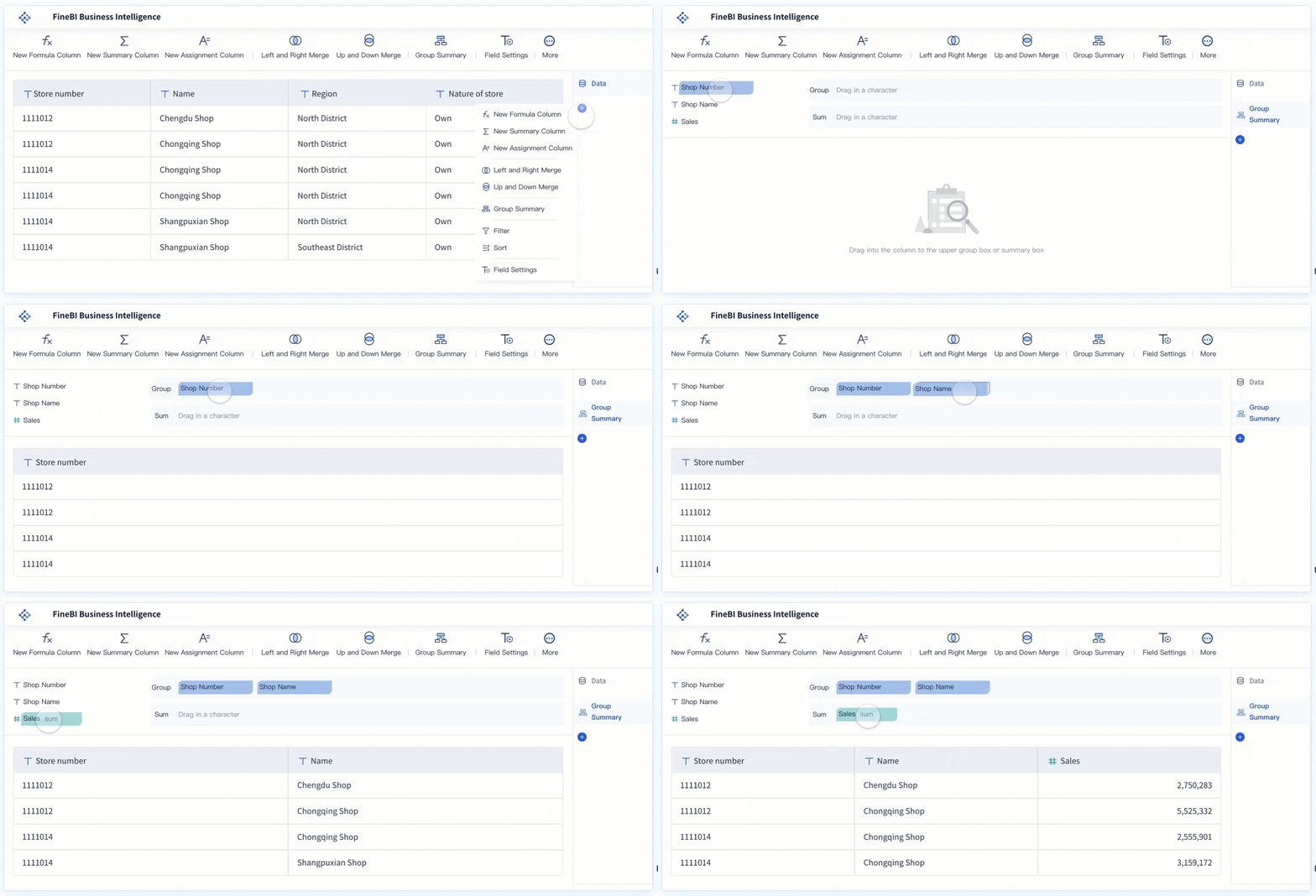 Drag-and-drop Dashboard Creation
Instead of focusing only on per-user license math, some teams also evaluate how quickly business users can create, explore, and refine dashboards with less reporting bottleneck.
That matters because software subscription cost is only one part of BI economics. The other part is how efficiently people can turn trusted data into decisions.
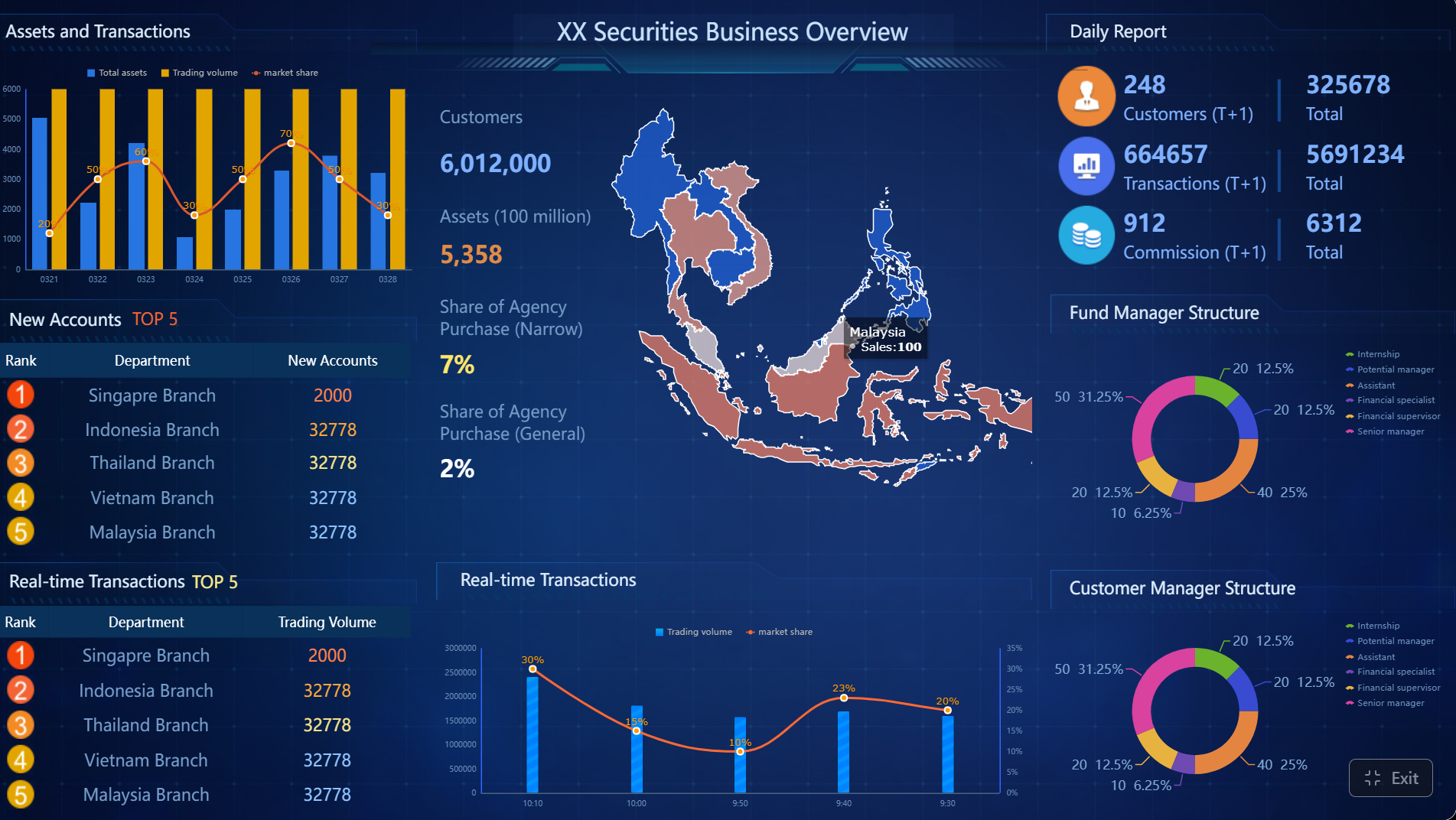
Why FineBI + Dora is relevant in modern BI buying discussions
As BI programs mature, companies often want more than static dashboard consumption. They want a trusted analytics foundation plus an AI layer that helps people ask questions, interpret metrics, and follow up on business exceptions.
That is where FineBI + Dora becomes relevant.
- FineBI builds the trusted dashboard, metric, and semantic foundation.
- Dora is FanRuan’s enterprise Data Agent platform that sits on top of FineBI and existing enterprise data assets.
- Together, FineBI + Dora helps organizations move from simply viewing dashboards to enabling Agentic BI workflows.
Dora should not be viewed as a generic chatbot or as a replacement for FineBI. It is better understood as an AI assistant or AI digital employee layer for governed analytics scenarios.
Examples of Dora-style enterprise roles include:
- Data Analyst digital employee
- Report Researcher
- Daily Briefing Secretary
- Risk Alert Officer

In practice, that means a user can move from a dashboard-centric workflow toward a governed AI workflow that supports:
- Natural-language requests
- Trusted semantic interpretation
- Governed query or skill execution
- Answers, summaries, charts, actions, and follow-up

Ask Dora in Natural Language Now →
For enterprises comparing BI platforms, this matters because the future buying decision is no longer only about report creation. It is also about whether your BI foundation can support trusted AI-driven analysis without losing governance.
Get Ready-to-Use Dashboard Templates in Fine Gallery
Final thoughts on Power BI Pro cost
If you only need a clear answer to power bi pro cost, the base pricing is straightforward:
- 3 users: 504/year
- 10 users: 1,680/year
- 25 users: 4,200/year
- 100 users: 16,800/year
The harder question is whether Power BI Pro remains the right fit as your audience grows.
For small collaborative teams, Pro is often a reasonable and predictable starting point. But as more viewers, departments, governance requirements, and AI-driven analytics needs emerge, it makes sense to compare not only Microsoft’s broader licensing paths, but also self-service BI options like FineBI and enterprise Data Agent approaches like Dora.
If your organization is evaluating dashboard adoption, self-service analytics, or a more business-friendly BI experience, it is worth seeing how those workflows look in practice.
FAQs
Power BI Pro costs $14 per user per month, paid yearly, based on Microsoft’s public pricing. Your total cost depends on how many people need a license.