

Quick Fix: Enable Analysis ToolPak in Excel
If Data Analysis is not showing in Excel, the Analysis ToolPak is probably not enabled. On Windows, go to File > Options > Add-ins > Manage: Excel Add-ins > Go, check Analysis ToolPak, and click OK. On Mac, go to Tools > Excel Add-ins, check Analysis ToolPak, click OK, and restart Excel.
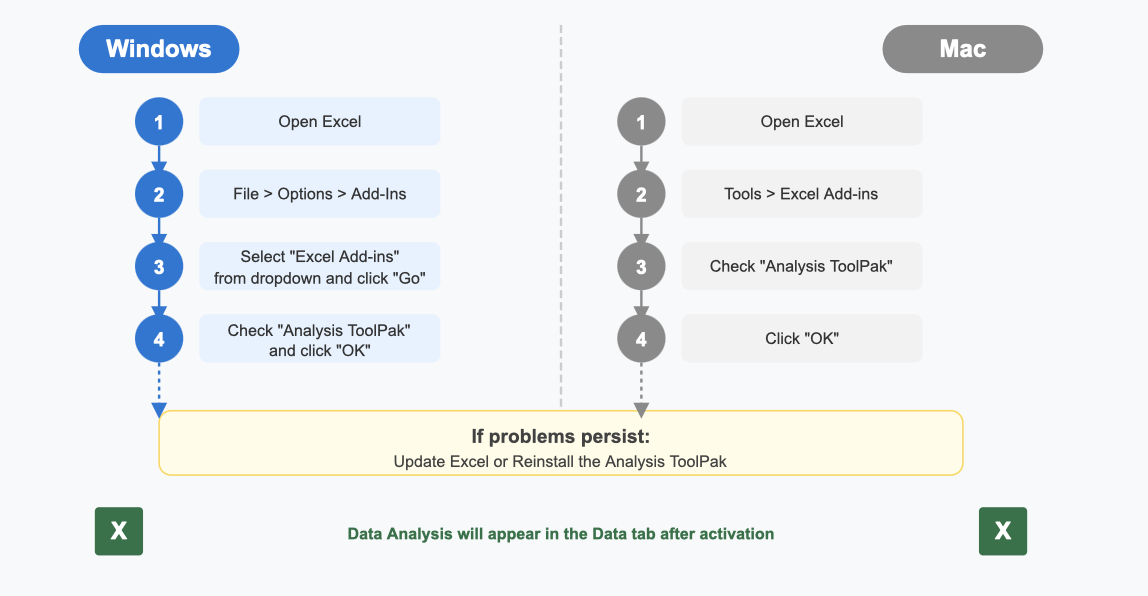
Load the Analysis ToolPak in Excel →
Why Is Data Analysis Not Showing in Excel?
If you’re wondering why the Data Analysis ToolPak isn’t showing up in Excel, you’re not alone. There are a few common reasons for this issue, and understanding them can help you fix it quickly. Let’s break them down.
The ToolPak is Not Enabled by Default
One of the most common reasons is that the ToolPak isn’t enabled by default. Even though it’s included in all versions of Excel, it often requires manual activation. This is especially true if you’ve done a custom installation of Excel.
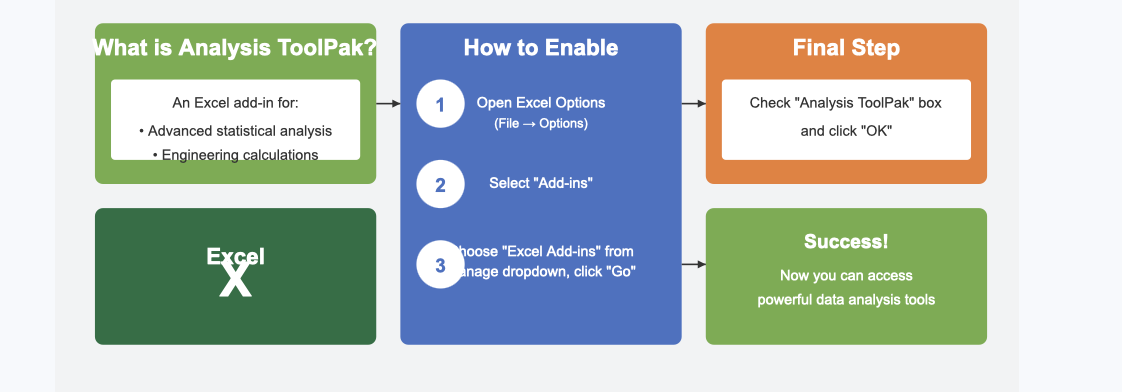
The Analysis ToolPak is an add-in that provides advanced statistical and engineering calculations. However, it doesn’t activate automatically. You’ll need to enable it through the Excel options menu. Don’t worry—it’s a quick process. Just head to the “Add-ins” section in Excel’s settings, and you’ll find the ToolPak waiting to be turned on.
Tip: If you don’t see the ToolPak listed, it might not be installed. In that case, you’ll need to add it manually by selecting “Excel Add-ins” and checking the box for the Analysis ToolPak.
Outdated Excel Version or Compatibility Issues
Another reason could be your Excel version. The Data Analysis ToolPak is only available in Excel 2007 and later versions. If you’re using an older version, you won’t find it, no matter how hard you look.
Compatibility issues can also cause problems. For example, if you’re running Excel on an older operating system, some features might not work as expected. Always make sure your Excel and operating system are up to date. Running the latest version ensures you have access to all the tools, including the Analysis ToolPak.
Here’s a quick checklist to help you troubleshoot:
| Reason for ToolPak Not Showing | Description |
|---|---|
| Add-in Not Showing | The ToolPak may not be installed. Check under 'Add-ins' in Excel options. |
| Data Analysis Option Grayed Out | The ToolPak is disabled. Re-enable or repair the installation. |
| Check Excel Version | The ToolPak is available only in Excel 2007 and later versions. |
| Run Excel as Administrator | Resolves permission issues preventing the add-in from being enabled. |
Incorrect Add-in Settings on Windows or Mac
Sometimes, the issue lies in the add-in settings. Errors in these settings can prevent the ToolPak from appearing or functioning correctly. This is especially common if you’ve used certain web add-ins or shared settings between different systems.
For example, users have reported issues like connectivity errors or permission warnings when using custom domains. These problems can disrupt the functionality of add-ins, including the Analysis ToolPak. On Mac, incorrect settings might cause the add-in to fail to load until you interact with it manually.
| Issue Description | Impact on Add-in Settings |
|---|---|
| Some documents failed to load after using certain web add-ins. | Indicates potential errors in add-in settings. |
| Sharing settings between OMEX and ExCatalog were no longer possible. | Affects web add-in settings updates. |
| Users received connectivity errors when internal and external EWS endpoints differed. | Impacts add-in functionality. |
| Custom domain users saw permission warning messages when pasting links. | Suggests issues with add-in permissions. |
| Forms content add-in did not render until user interaction occurred. | Points to errors in add-in display settings. |
If you suspect add-in settings are the problem, try resetting them or reinstalling the ToolPak. On Windows, running Excel as an administrator can also resolve permission-related issues.
By addressing these common reasons, you’ll likely solve the “data analysis excel not showing” problem and get back to analyzing your data in no time.
How to Enable Data Analysis in Excel on Windows

If you’re using Excel on Windows and the Data Analysis ToolPak isn’t showing, don’t worry—it’s easy to fix. Follow these steps to enable it and get back to crunching numbers.
Step-by-Step Guide for Windows Users
Here’s a simple guide to activate the Analysis ToolPak in Excel:
- Open Excel and create a new workbook.
- Click on the File tab in the top-left corner.
- Select Options from the menu.
- In the Excel Options window, click on Add-ins on the left-hand side.
- Look for the Manage dropdown at the bottom of the window. Ensure it says Excel Add-ins, then click Go.
- A list of available add-ins will appear. Check the box next to Analysis ToolPak.
- Click OK to confirm.
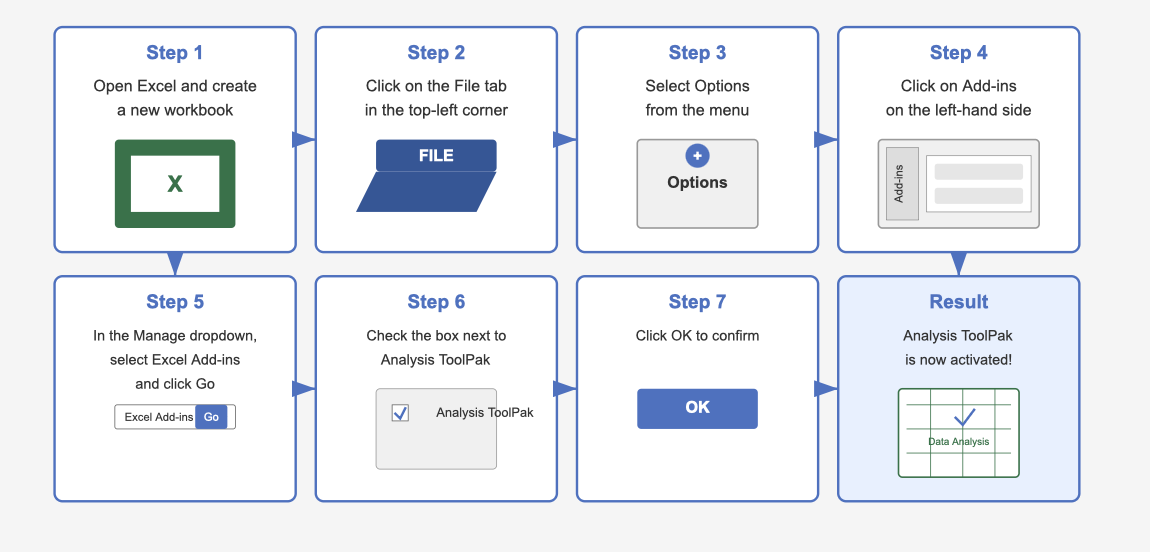
Once you’ve completed these steps, the ToolPak will appear under the Data tab in Excel. You’ll now have access to advanced data analysis features like regression, descriptive statistics, and more.
Pro Tip: If the ToolPak doesn’t show up after enabling it, try restarting Excel. Sometimes, a quick restart is all it takes to refresh the settings.
Troubleshooting Common Windows-Specific Issues

Even after enabling the ToolPak, you might encounter some hiccups. Here are common issues and how to resolve them:
- The ToolPak isn’t listed in the Add-ins menu
This usually happens if the ToolPak wasn’t installed during Excel’s initial setup. To fix this, run the Excel installer again and select the option to add missing components. - Permission problems prevent activation
If you’re unable to enable the ToolPak, try running Excel as an administrator. Right-click on the Excel shortcut, select Run as Administrator, and repeat the activation steps. - Excel version compatibility
The Analysis ToolPak is only available in Excel 2007 and later versions. If you’re using an older version, consider upgrading to access this feature. - Corrupted installation files
Sometimes, Excel’s installation files can become corrupted, causing add-ins to malfunction. Repair the installation by going to the Control Panel, selecting Programs, and choosing the Repair option for Microsoft Office.
Note: If none of these solutions work, reinstalling Excel might be necessary. Make sure to back up your files before proceeding.
By following these steps and troubleshooting tips, you’ll resolve the "data analysis excel not showing" issue and unlock Excel’s powerful analysis tools.
How to Enable Data Analysis in Excel on Mac
If you’re using Excel on a Mac and can’t find the Data Analysis ToolPak, don’t worry—it’s a common issue with a straightforward fix. Let’s walk through the steps to enable it and troubleshoot any Mac-specific problems.
Step-by-Step Guide for Mac Users
Getting the Analysis ToolPak up and running on your Mac is simple. Follow these steps:
- Open Excel and create a new workbook.
- Click on the Tools menu at the top of your screen.
- Select Excel Add-ins from the dropdown menu.
- A new window will pop up. Look for Analysis ToolPak in the list of available add-ins.
- Check the box next to Analysis ToolPak and click OK.
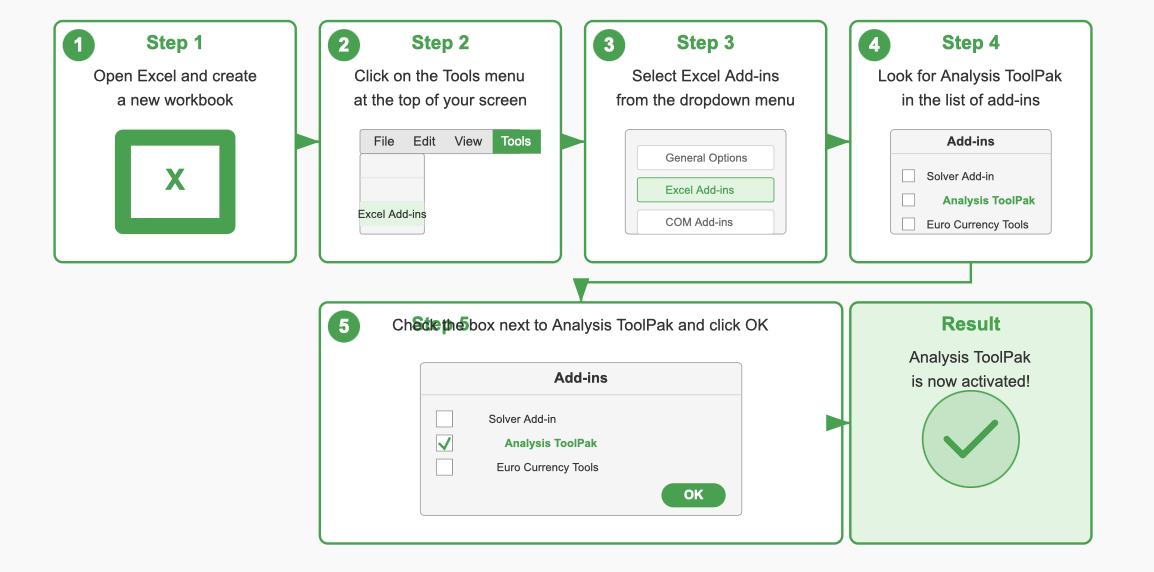
Once you’ve done this, the ToolPak should appear under the Data tab in Excel. You’ll now have access to features like regression analysis, histograms, and more.
Pro Tip: If the ToolPak doesn’t show up immediately, restart Excel. Sometimes, a quick restart is all it takes to refresh the settings.
Troubleshooting Common Mac-Specific Issues
Even after enabling the ToolPak, you might run into a few hiccups. Here’s how to tackle them:
- Add-in Not Showing?
Double-check if the Analysis ToolPak is installed. Go to Tools > Excel Add-ins and ensure the box is checked. If it’s not listed, you may need to reinstall Excel or update to the latest version. - Data Analysis Option Grayed Out?
This usually means the ToolPak is disabled. Re-enable it by following the steps above. If that doesn’t work, repairing your Excel installation might help. - Functions Returning Errors?
Sometimes, errors occur because data isn’t formatted correctly. For example, numeric values stored as text can cause problems. Make sure your data is clean and properly formatted before running any analysis. - Performance Issues with Large Datasets?
Working with large datasets can slow things down. Try breaking your data into smaller chunks or use Excel’s Power Query feature for better performance.
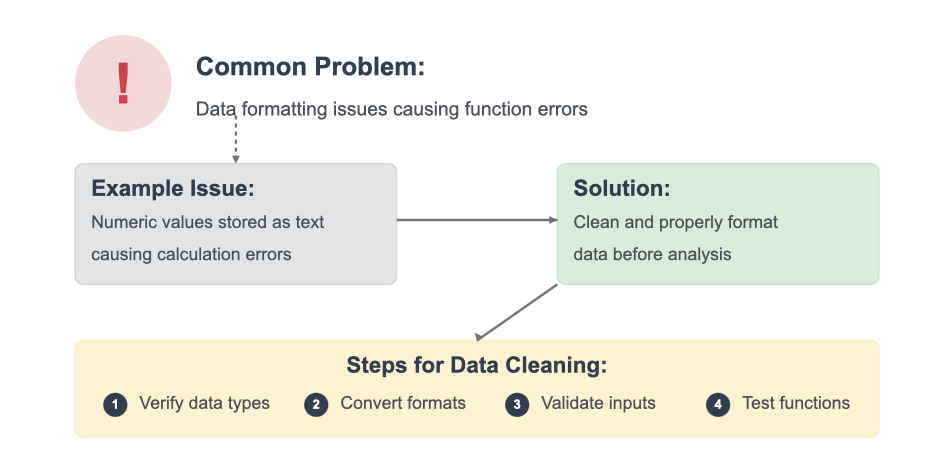
If none of these solutions work, consider reinstalling Excel or reaching out to Microsoft Support for further assistance. Most users find that these steps resolve the "data analysis excel not showing" issue quickly and effectively.
Note: Always keep your Excel version updated. Updates often fix bugs and improve compatibility, ensuring a smoother experience.
By following these steps and troubleshooting tips, you’ll have the Analysis ToolPak up and running on your Mac in no time. Say goodbye to frustration and hello to seamless data analysis!
What to Do If Analysis ToolPak Is Missing
If the Analysis ToolPak does not appear in your add-ins list at all, it was likely excluded during installation. Here is how to fix it:
On Windows:
- Open Control Panel > Programs and Features.
- Find Microsoft Office (or Microsoft 365), right-click, and select Change.
- Choose Add or Remove Features and click Continue.
- Expand Shared Features > Analysis ToolPak.
- Set it to Run from My Computer and click Install Now.
On Mac:
- Open Microsoft AutoUpdate (found in /Library/Application Support/Microsoft/MAU2.0/).
- Check for updates and install any pending Office updates.
- If the ToolPak still does not appear, download the latest Office installer from office.com and run a repair installation.
After installation, return to the add-ins menu and enable the ToolPak as described in the Windows or Mac sections above.
What If Data Analysis Still Does Not Appear?
If you’ve tried enabling the ToolPak and it’s still not showing up, don’t worry. There are a few more steps you can take to resolve the issue. Let’s dive into them.
Update Excel to the Latest Version
Sometimes, the simplest solution is the most effective. Updating Excel to the latest version can fix bugs that might prevent the Data Analysis ToolPak from working properly. Microsoft frequently releases updates to address compatibility issues and improve functionality.
Here’s why updating Excel can help:
- Updates often fix bugs that stop add-ins from installing or functioning correctly.
- The latest version ensures you have access to all features, including the Analysis ToolPak.
To check for updates, open Excel and go to File > Account > Update Options. Select Update Now to install the latest version. Once updated, restart Excel and see if the ToolPak appears under the Data tab.
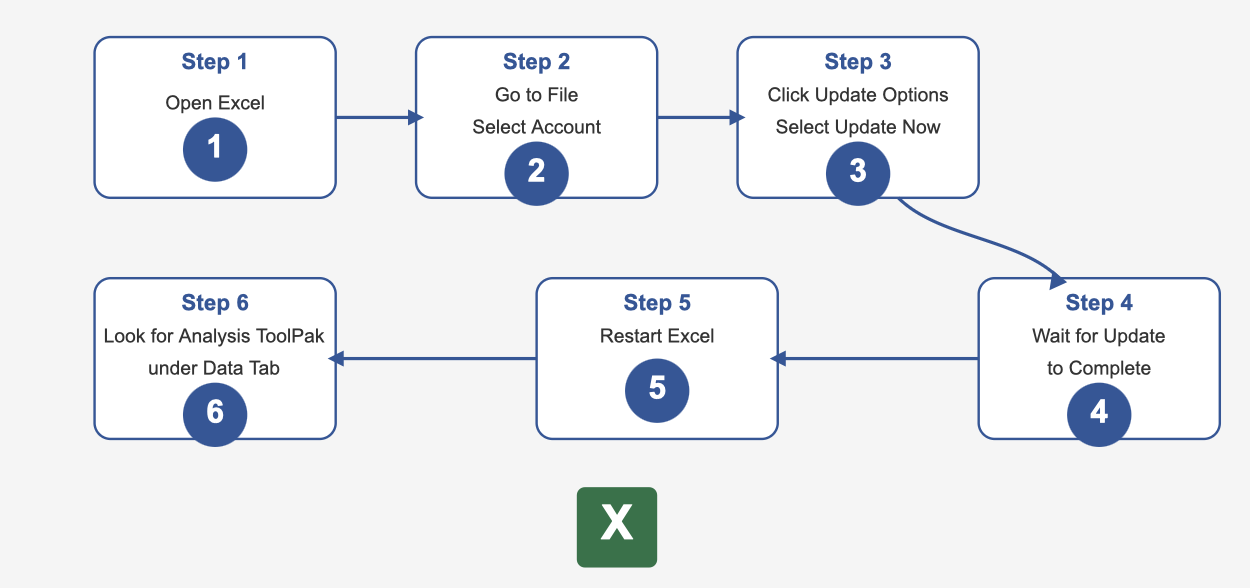
Tip: If you’re still facing issues, double-check that the ToolPak is enabled under File > Options > Add-Ins.
Verify Add-in Settings and Reinstall the ToolPak
If updating Excel doesn’t solve the problem, the issue might lie in the add-in settings. Sometimes, the ToolPak gets disabled or isn’t installed during the initial setup. Verifying these settings can often resolve the issue.
Here’s what you should do:
- Open Excel and navigate to File > Options > Add-Ins.
- Check if the Analysis ToolPak is listed under Active Add-ins.
- If it’s not listed, select Excel Add-ins from the dropdown menu at the bottom and click Go.
- In the pop-up window, check the box next to Analysis ToolPak and click OK.
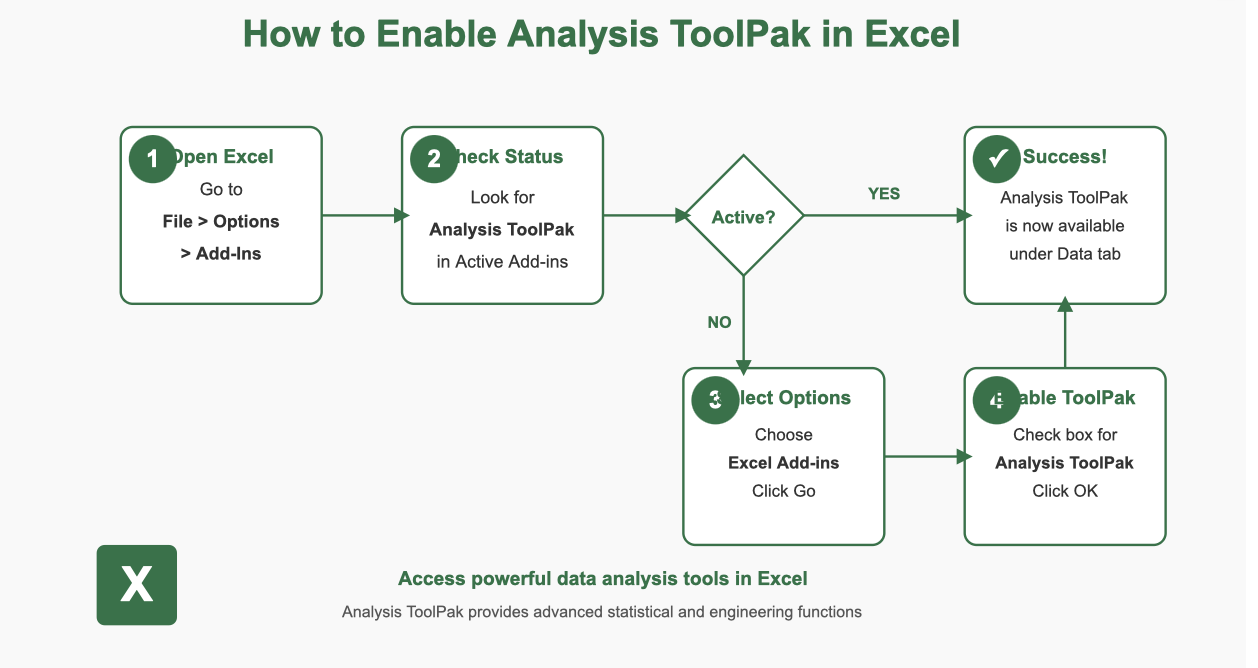
If the ToolPak still doesn’t appear, you may need to reinstall it. Run the Excel installer again and select the option to add missing components. This ensures the ToolPak is properly installed and ready to use.
Note: Many users have found that verifying add-in settings resolves the issue quickly. It’s a simple step that can save you a lot of frustration.
Check for Operating System Compatibility
Sometimes, the problem isn’t Excel—it’s your operating system. Older systems might not support the latest Excel features, including the Analysis ToolPak. Ensuring your OS is compatible with your Excel version is crucial.
Here’s how to check:
- Confirm that your operating system meets the requirements for your version of Excel.
- If you’re using an outdated OS, consider upgrading to a newer version.
For example, if you’re running Windows 7 or an older macOS, you might encounter compatibility issues. Upgrading your OS can resolve these problems and improve overall performance.
Pro Tip: Always keep both your operating system and Excel updated. This ensures smooth functionality and access to all features.
By following these steps, you’ll likely resolve the "data analysis excel not showing" issue once and for all. Don’t let technical hiccups slow you down—get back to analyzing your data with ease!
When Excel Analysis ToolPak Is Not Enough
Excel Analysis ToolPak is useful for one-time statistical analysis, but it becomes limited when teams need:
- Repeatable reporting: Manually rerunning regression or ANOVA every week is error-prone and time-consuming.
- Live dashboards: The ToolPak produces static output tables, not interactive visualizations that update automatically.
- Multiple data sources: Combining data from databases, APIs, and spreadsheets requires manual import each time.
- Permissions and governance: ToolPak has no built-in access control; anyone with the file can modify analyses.
- Scheduled updates: There is no native way to schedule automatic report refresh or distribution.
In that case, a BI tool such as FineBI can turn spreadsheets, databases, and business systems into reusable dashboards without rebuilding the same analysis every week. For enterprise-grade automated reporting with pixel-perfect formatting, FineReport handles complex layouts that Excel cannot. And when your data lives across multiple systems, FineDataLink provides seamless data integration to feed your BI platform.
Need repeatable analysis beyond Excel? Try FineBI for self-service BI dashboards.

You can also explore our collection of free Excel dashboard templates to bridge the gap between basic ToolPak analysis and full BI adoption.
Frequently asked questions
The most common reason is that the Analysis ToolPak add-in is not enabled. It is included with Excel but turned off by default. Enable it via File > Options > Add-ins > Manage: Excel Add-ins > Go (Windows) or Tools > Excel Add-ins (Mac), then check Analysis ToolPak and click OK.