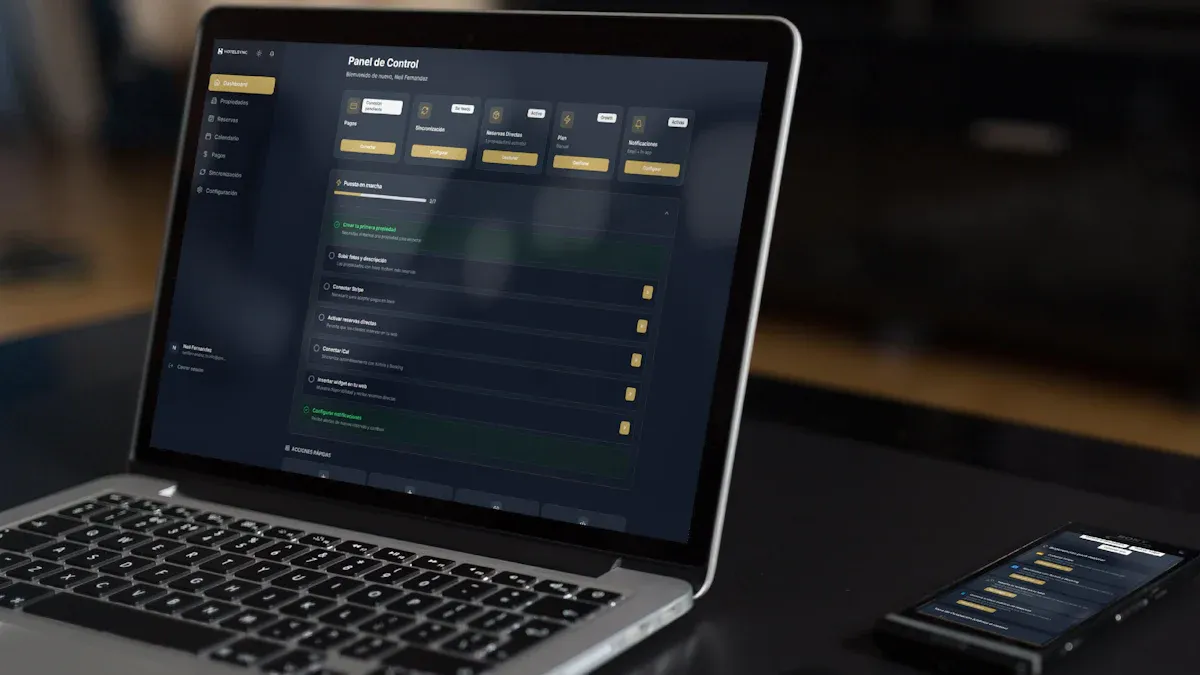

A dashboard image is only valuable if it helps an executive understand performance fast enough to make a decision. In leadership reporting, that is the standard. CFOs, COOs, business unit heads, and operations directors do not study visuals for design quality. They scan for risk, trend direction, variance, and next action.
The practical challenge is simple: many reports look polished but fail to clarify KPI status. They overload leaders with decorative graphics, inconsistent chart choices, and weak visual hierarchy. The result is slower decision-making, more follow-up questions, and less trust in the report itself.
This guide explains how to use every dashboard image with purpose, so executive reports become clearer, faster to scan, and easier to act on.
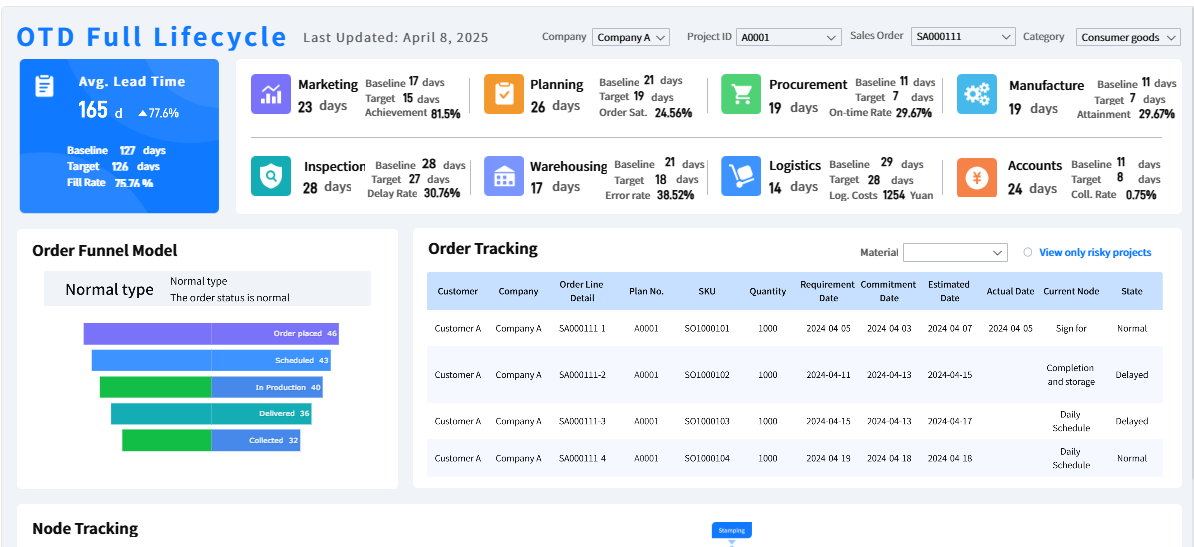 Click To Try The Dashboard
What makes a dashboard image useful in executive reports
A useful dashboard image translates KPI status into immediate business understanding. It gives leaders a visual shortcut to answer questions such as:
- Are we on target or off target?
- What changed since last period?
- Where is the biggest risk?
- Which issue needs action first?
In executive reports, a dashboard image is not just a screenshot, icon, or graphic element. It is any visual component that helps communicate the status, movement, or priority of a metric. That can include charts, trend lines, variance indicators, heatmaps, status symbols, and annotated comparisons.
The difference between informative visuals and decorative graphics is critical:
- Informative visuals explain performance, comparison, trend, or exception.
- Decorative graphics make the report look modern but add no decision value.
Executives usually review reports under time pressure. They do not read every note in sequence. They scan the page in seconds, looking for hierarchy and patterns. That means your dashboard image strategy should optimize for:
- Instant recognition
- Low cognitive load
- Clear KPI prioritization
- Fast interpretation across devices and formats
Key Metrics (KPIs) for evaluating dashboard image effectiveness
Use these KPIs to assess whether a dashboard image is helping or hurting executive reporting:
- Time to Insight: How quickly a stakeholder can identify the main message or issue.
- Scanability: How easily users can locate top KPIs, supporting metrics, and exceptions.
- Signal-to-Noise Ratio: The balance between meaningful data cues and distracting visual elements.
- Decision Relevance: Whether the visual supports a specific business decision or action.
- Interpretation Accuracy: The likelihood that different viewers reach the same conclusion.
- Visual Consistency: How reliably colors, symbols, and layout patterns mean the same thing across reports.
- Accessibility: Whether the dashboard image remains readable for different users, screens, and export formats.
- Export Quality: Whether visuals stay sharp and understandable in PDFs, slides, emails, and mobile displays.
1. Start with the KPI story before choosing visuals
The most effective executive report begins with the message, not the design. Before selecting a dashboard image, define what the metric is supposed to say and what decision it should support.
Identify the decision each metric should support
Every chart, icon, or image should answer a business question. If it does not, it probably does not belong in the report.
Ask these practical questions before adding any visual:
- What decision should this metric influence?
- Does the leader need to compare, monitor, prioritize, or investigate?
- Will this visual change interpretation or action?
For example:
- A trend line helps answer whether revenue momentum is improving or weakening.
- A variance bar helps show how far actual performance is from target.
- A status indicator helps leaders see whether a KPI is on track without reading details.
If a dashboard image only makes the report look more sophisticated but does not improve understanding, remove it.
Choose the clearest format for the data
The right visual is usually the simplest one. Executive reporting is not the place for experimental design patterns that require explanation.
When speed matters, use familiar formats such as:
- Bar charts for comparisons across categories
- Line charts for trends over time
- Bullet charts for actual vs. target
- Traffic-light indicators for status
- Tables with sparklines for compact multi-KPI reporting
Prefer visual patterns leaders already understand. A familiar chart interpreted in two seconds is more valuable than a creative layout interpreted in twenty.
2. Use dashboard image hierarchy to guide attention
Good executive reports control where the eye goes first. Visual hierarchy is what separates a clear report from a noisy one.
Prioritize the most important KPIs visually
Not every KPI deserves equal visual weight. The metrics tied to strategic performance, financial risk, customer outcomes, or operational disruption should be most prominent.
Use hierarchy intentionally through:
- Position: Put the most important KPI in the top-left or top-center area.
- Size: Make critical metrics larger than secondary indicators.
- Contrast: Use stronger color contrast for the most urgent or important data.
- Grouping: Place supporting metrics near the main KPI so they provide context instead of competition.
A strong dashboard image hierarchy helps executives answer, at a glance:
- What matters most?
- What is going wrong?
- What needs escalation?
Keep labels and context easy to scan
A dashboard image is only as clear as its labels. Even strong charts fail when titles are vague or units are hidden.
Use these rules:
- Write short, direct titles
- Label metrics with business language, not internal jargon
- Show units clearly, such as %, $, volume, or hours
- Include time frame, such as monthly, quarterly, or YTD
- Make targets and benchmarks visible
- Add concise annotations where context is essential
Instead of a title like Performance Overview, use Q2 Operating Margin vs Target. The second version reduces ambiguity immediately.
3. Reduce clutter that distracts stakeholders
Clutter is one of the most common reasons a dashboard image fails. Executives do not need more visual stimulation. They need less friction.
Cut unnecessary icons, colors, and background elements
Too many icons, color accents, borders, gradients, and decorative backgrounds compete with the KPI message. Visual noise makes interpretation slower and weakens confidence.
To reduce clutter:
- Limit the color palette
- Use one emphasis color for exceptions or alerts
- Remove redundant legends if direct labeling works
- Eliminate chart borders, 3D effects, and unnecessary shadows
- Use whitespace to separate ideas instead of adding lines everywhere
Whitespace is not wasted space. It is a performance tool. It helps users distinguish sections, absorb hierarchy, and process KPI relationships faster.
Avoid stock-style visuals that do not add meaning
Generic imagery often creates the illusion of professionalism without adding analytical value. A polished office photo, abstract tech background, or decorative icon set does not explain KPI movement.
Be cautious with any dashboard image that:
- Cannot be tied to a metric
- Does not improve comprehension
- Adds style without signaling trend, risk, or action
Replace decorative elements with more useful alternatives, such as:
- A variance label
- A trend annotation
- A short executive comment
- A clearer comparison view
In executive reporting, clarity beats aesthetics every time.
4. Select examples and templates that support clarity
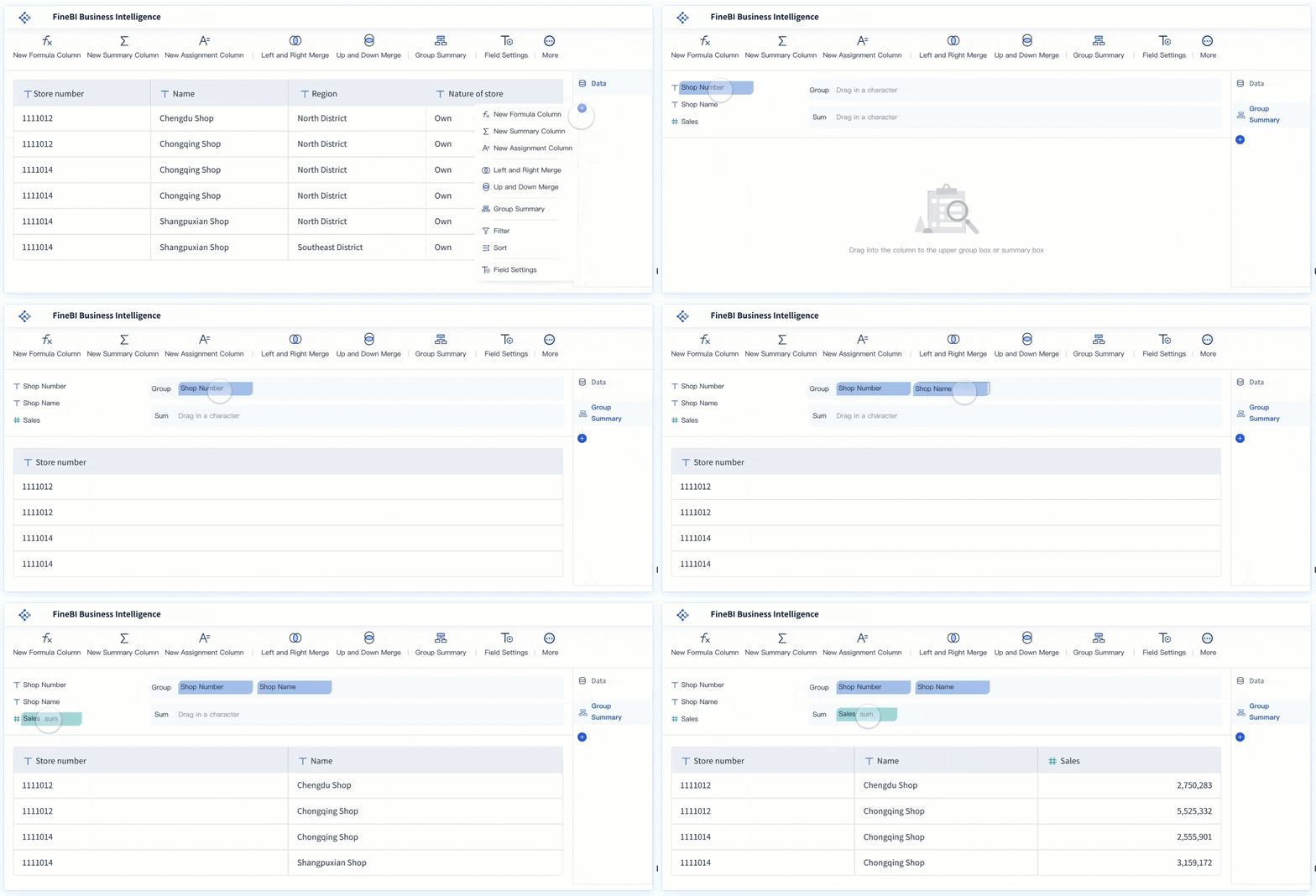
Many teams search for dashboard examples or templates when building executive reports. That is useful, but only if they treat examples as starting points rather than finished answers.
Learn from strong dashboard examples
High-quality dashboard examples typically share a few strengths:
- Trends are visible immediately
- Exceptions stand out without overwhelming the page
- Layout supports the reading order
- The top KPIs appear first
- Supporting metrics provide context, not distraction
When reviewing dashboard examples, compare them against actual reporting needs. Ask:
- Does this structure work for strategic review or only operational monitoring?
- Can executives understand it in under a minute?
- Is the main business message obvious without verbal explanation?
The best examples reveal priorities and anomalies quickly. They do not force users to decode the design.
Adapt reporting templates without copying visual clutter
Templates can accelerate report design, but they often include unnecessary components added for broad appeal. If you copy them blindly, you inherit clutter.
A better approach is to customize each template component based on:
- KPI objective
- Executive audience
- Reporting cadence
- Decision frequency
- Level of detail required
For example, a monthly executive review template may need:
- A small set of strategic KPIs
- Clear target comparisons
- Brief exception commentary
- Limited drill-down detail
It probably does not need ten mini-panels, decorative icons, and multiple competing color systems.
5. Check accessibility, consistency, and image quality
A dashboard image can be analytically correct and still fail in real-world use if it is hard to read in a boardroom slide, mobile view, or exported PDF.
Make visuals readable in real reporting conditions
Always test dashboard images in the formats executives actually use. A chart that works on a desktop screen may fail when inserted into slides or compressed in email attachments.
Review these factors:
- Color contrast for readability
- Font size for presentation and mobile viewing
- Line thickness so trends remain visible
- Image sharpness after export
- Chart spacing so labels do not overlap
- Annotation visibility in PDF and presentation mode
A strong rule: if the key message disappears when the report is projected in a meeting room, the dashboard image is not executive-ready.
Standardize visual rules across reports
Consistency reduces learning time. When stakeholders repeatedly see the same visual language, they interpret reports faster and with more confidence.
Standardize rules for:
- KPI state colors
- Chart types by use case
- Icon meanings
- Time period display
- Target and benchmark indicators
- Layout zones for strategic vs supporting metrics
For example:
- Red always means under target
- Green always means on target
- Line charts are always used for trend
- Bullet charts are always used for actual vs plan
This repeatability improves interpretation speed and strengthens trust in the reporting process.
6. Review every visual before distribution
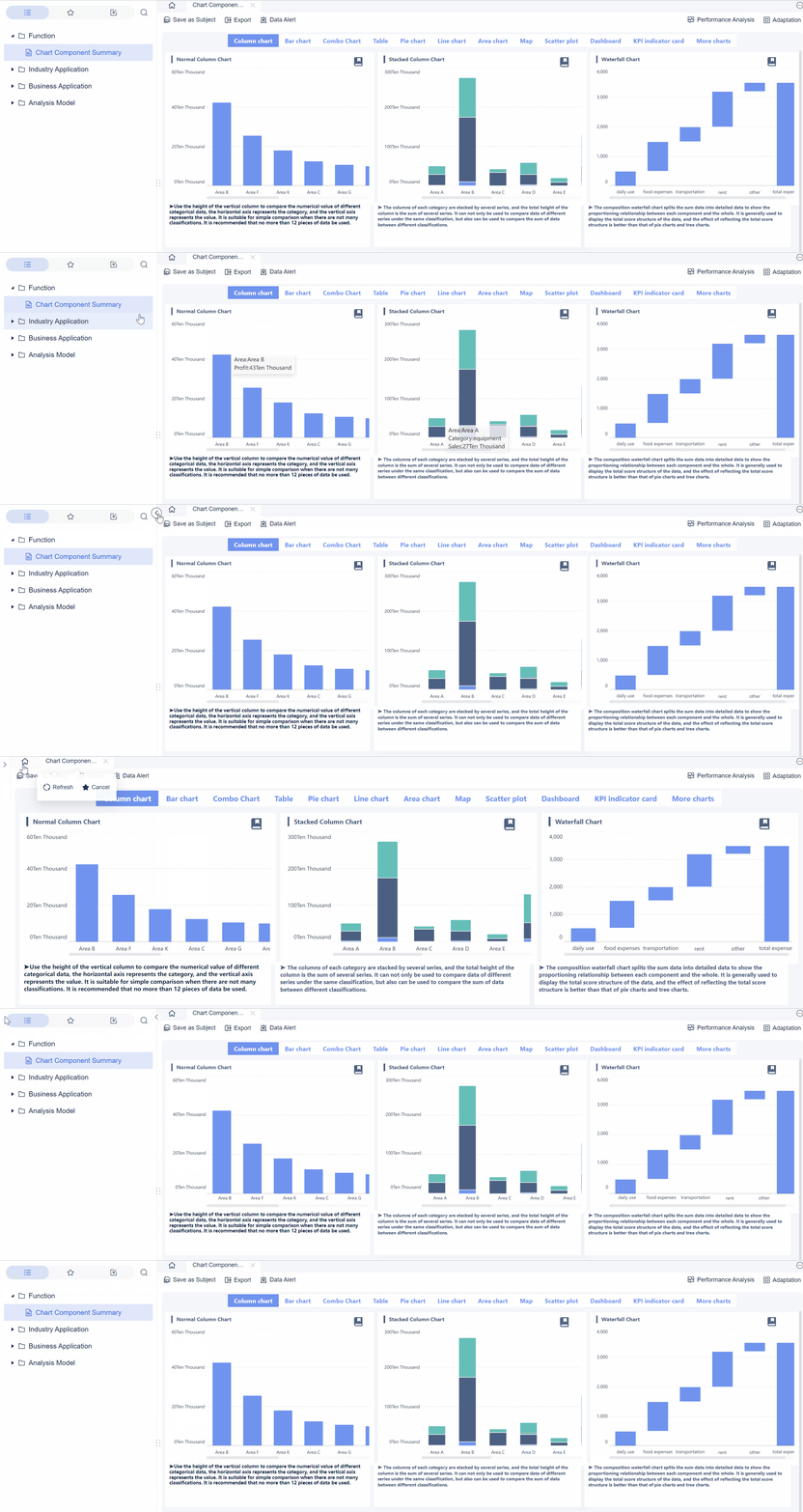
Even a strong draft report can lose impact if teams skip the final review. Every dashboard image should earn its place.
Ask whether each image improves understanding
Before distribution, challenge every visual with a simple test: does this help explain movement, risk, or opportunity more clearly than text alone?
Keep visuals that:
- Clarify change
- Highlight exception
- Reinforce priority
- Support a specific action
Remove visuals that:
- Repeat information without adding insight
- Look polished but say little
- Require too much explanation
- Invite multiple interpretations
A dashboard image should shorten the path to understanding, not lengthen it.
Use a final executive-readiness checklist
Use this checklist before sending the report:
- Are the top KPIs visible first?
- Is the main message clear within seconds?
- Does each dashboard image support a business question?
- Are units, dates, and targets clearly labeled?
- Have distracting or decorative elements been removed?
- Is the visual hierarchy obvious?
- Are exceptions and risks easy to spot?
- Does the report remain readable in slides, PDF, and mobile view?
- Are colors and icon meanings consistent with past reports?
- Can an executive act on what they see without additional clarification?
7. Build a repeatable dashboard image workflow with FineBI
The challenge for most teams is not understanding these principles. It is applying them consistently across business units, reporting cycles, and stakeholder requests. Building this manually is complex, especially when teams rely on spreadsheets, static screenshots, and one-off slide design.
That is where process and platform matter.
A modern BI workflow should help teams standardize dashboard image design, automate KPI updates, and reduce manual rework. Instead of recreating executive reports from scratch every cycle, organizations should use a system that supports governed templates, reusable visual standards, and fast distribution.
Best practices for implementation
As a consultant, I recommend these practical steps to operationalize executive-ready dashboard images:
-
Define a KPI communication model first
Map each executive KPI to its decision purpose, target logic, and preferred visual format. -
Create a standard visual playbook
Document chart usage, KPI color rules, annotation standards, and layout hierarchy for all executive reports. -
Pilot with one executive reporting use case
Start with a monthly business review, test scanability and interpretation speed, then refine based on stakeholder feedback. -
Use templates, but govern them centrally
Allow teams to adapt dashboard examples while maintaining enterprise rules for consistency and clarity. -
Automate refresh and export workflows
Reduce manual screenshotting and formatting so dashboard images stay current, sharp, and reliable across channels.
Why FineBI is the practical solution
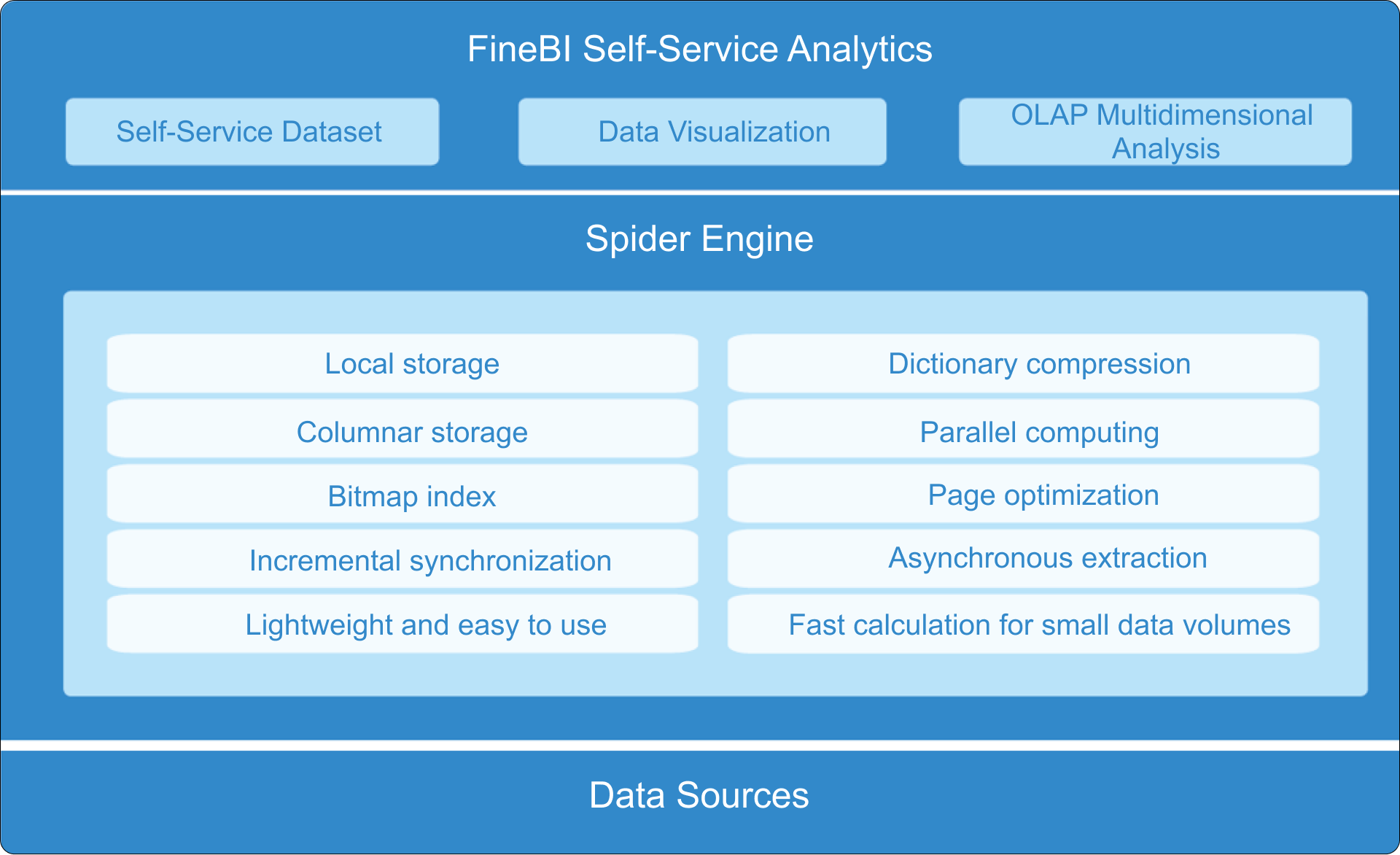
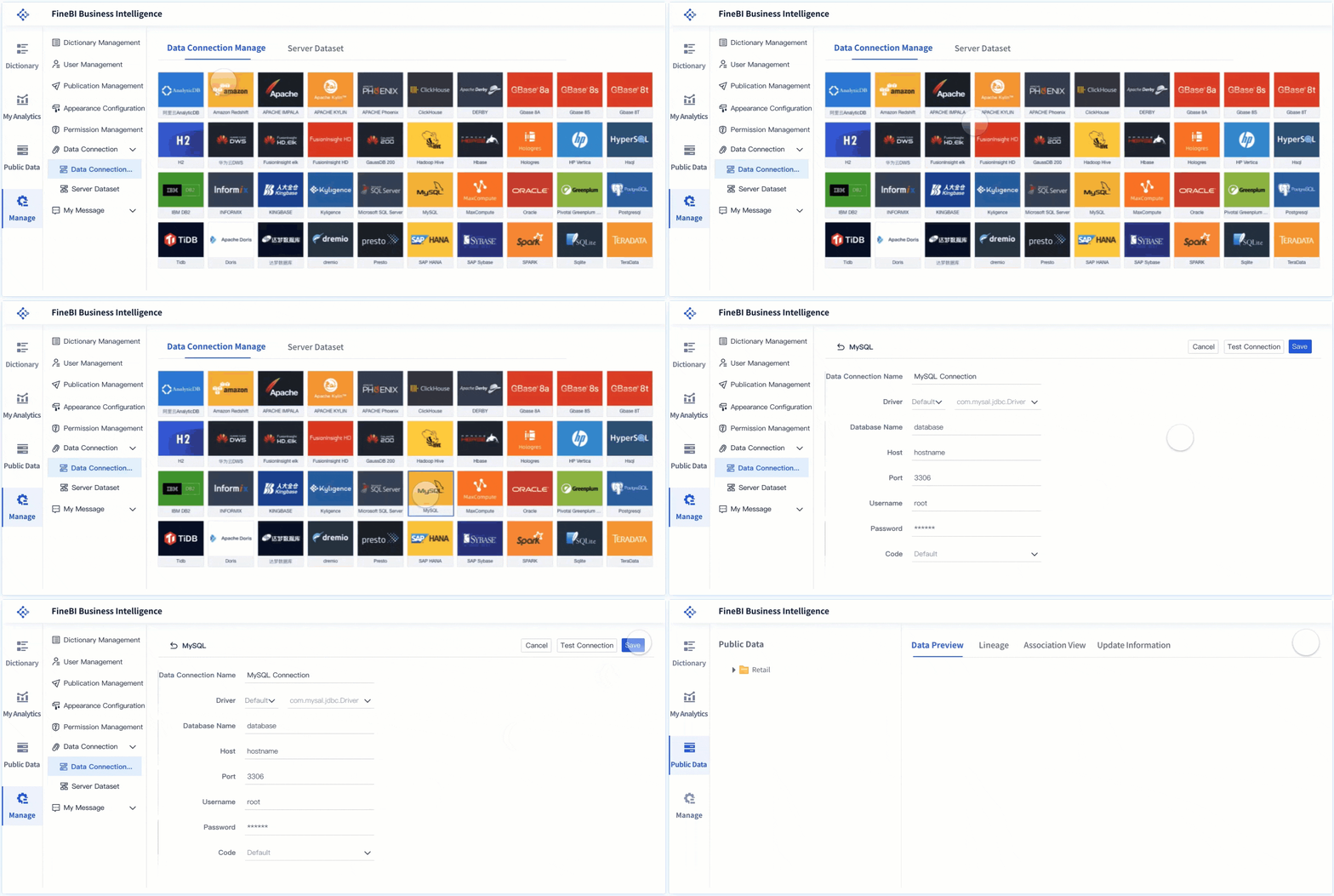
Building this manually is complex; use FineBI to utilize ready-made templates and automate this entire workflow.
FineBI helps organizations turn dashboard image best practices into a scalable reporting system by enabling teams to:
- Use ready-made dashboard templates designed for clarity
- Standardize KPI visuals across departments
- Build executive-friendly dashboards with consistent chart logic
- Refresh data automatically instead of updating static report images by hand
- Export and share reports in formats leaders actually use
- Reduce clutter through governed, reusable components
- Accelerate report creation without sacrificing analytical quality
For enterprise decision-makers, the value is straightforward: faster reporting cycles, clearer KPI communication, and more confidence in every executive review.
If your current reports depend on manual formatting and inconsistent dashboard images, the real issue is not design taste. It is reporting maturity. FineBI gives teams the structure to move from ad hoc visuals to a repeatable, executive-ready dashboard practice.
A dashboard image should do one job exceptionally well: make KPI meaning obvious. When that happens, executive reports stop being status documents and start becoming decision tools.
FAQs
An effective dashboard image helps leaders understand KPI status, trend, variance, and priority within seconds. It should reduce effort, not add decoration or confusion.