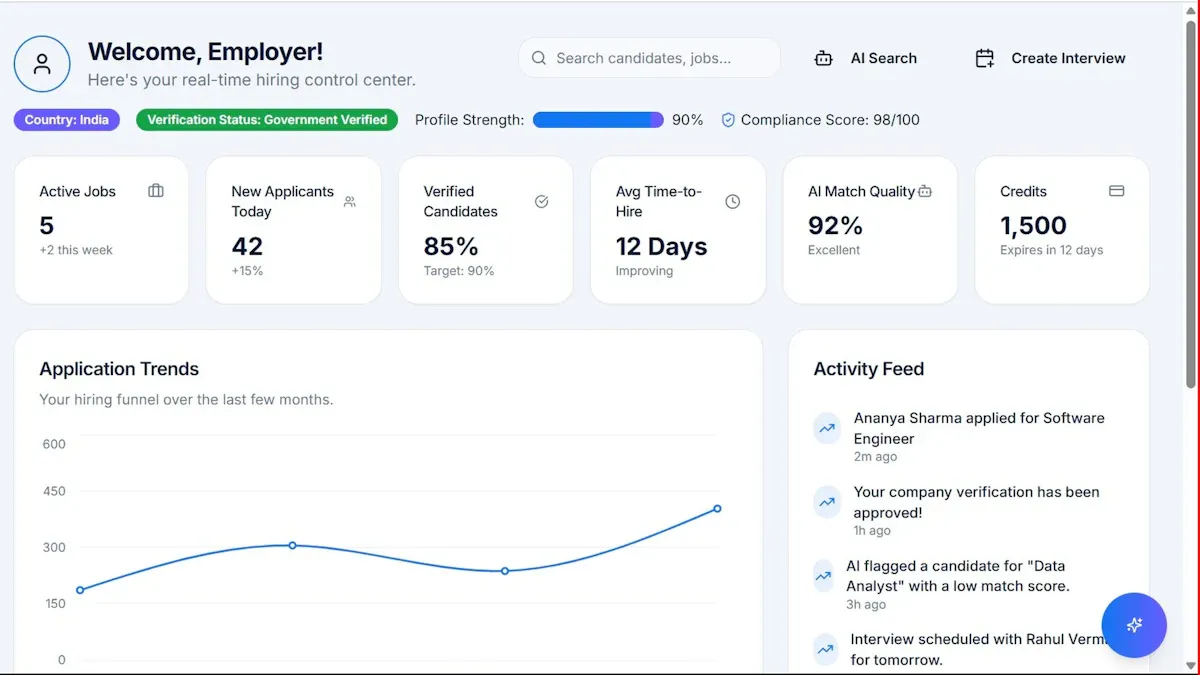

If your team needs formal, print-ready reports with fixed layouts, repeatable exports, and strict pagination, microsoft report builder is one of the most practical tools in the Microsoft reporting stack. It is especially valuable for IT managers, BI leads, finance teams, and operations analysts who must deliver reports such as statements, invoices, audit packs, and scheduled summaries in PDF or Excel without layout surprises. The core business value is simple: it helps organizations produce standardized reports that look the same every time, regardless of who opens, prints, or exports them.
Microsoft Report Builder at a glance
Microsoft Report Builder is a standalone report authoring tool designed primarily for creating paginated reports. These are reports built for precision: exact page size, fixed headers and footers, controlled page breaks, and reliable export formatting.

It is commonly used by:
- Business power users who need to build operational or financial reports without working inside a full development environment
- BI teams maintaining SSRS-style reporting workflows
- IT departments supporting standardized enterprise reporting
- Finance and compliance teams that require printable, audit-friendly outputs
In business environments, paginated reporting matters because not every report is meant to be interactive. Many reporting workflows still depend on documents that must be:
- Printed in a fixed format
- Sent by email on a schedule
- Exported to PDF or Excel consistently
- Archived for governance or compliance
- Distributed to external stakeholders in a controlled layout
Within the broader Microsoft ecosystem, Microsoft Report Builder sits in the paginated reporting category. It is not a dashboard tool first. It is not ideal for exploratory analytics. Instead, it complements tools like SSRS and Power BI by handling the document-style reporting layer that dashboards often cannot replace.
Key Metrics (KPIs) to evaluate whether this scenario fits
- Layout precision: Measures how strictly the report must follow fixed positioning, spacing, and page structure.
- Export consistency: Tracks whether PDF, Excel, or Word outputs must remain stable across users and runs.
- Distribution frequency: Indicates how often reports need to be generated on demand or on a schedule.
- Parameter complexity: Reflects how many user inputs, filters, or prompts are required before generating a report.
- Compliance sensitivity: Measures whether the output is used for audits, regulations, contracts, or official records.
- Self-service authoring need: Shows whether business users need to create or modify reports without full developer tooling.
- Interactivity requirement: Helps determine if users need drillable dashboards or simply standardized documents.
What Microsoft Report Builder is and its main features
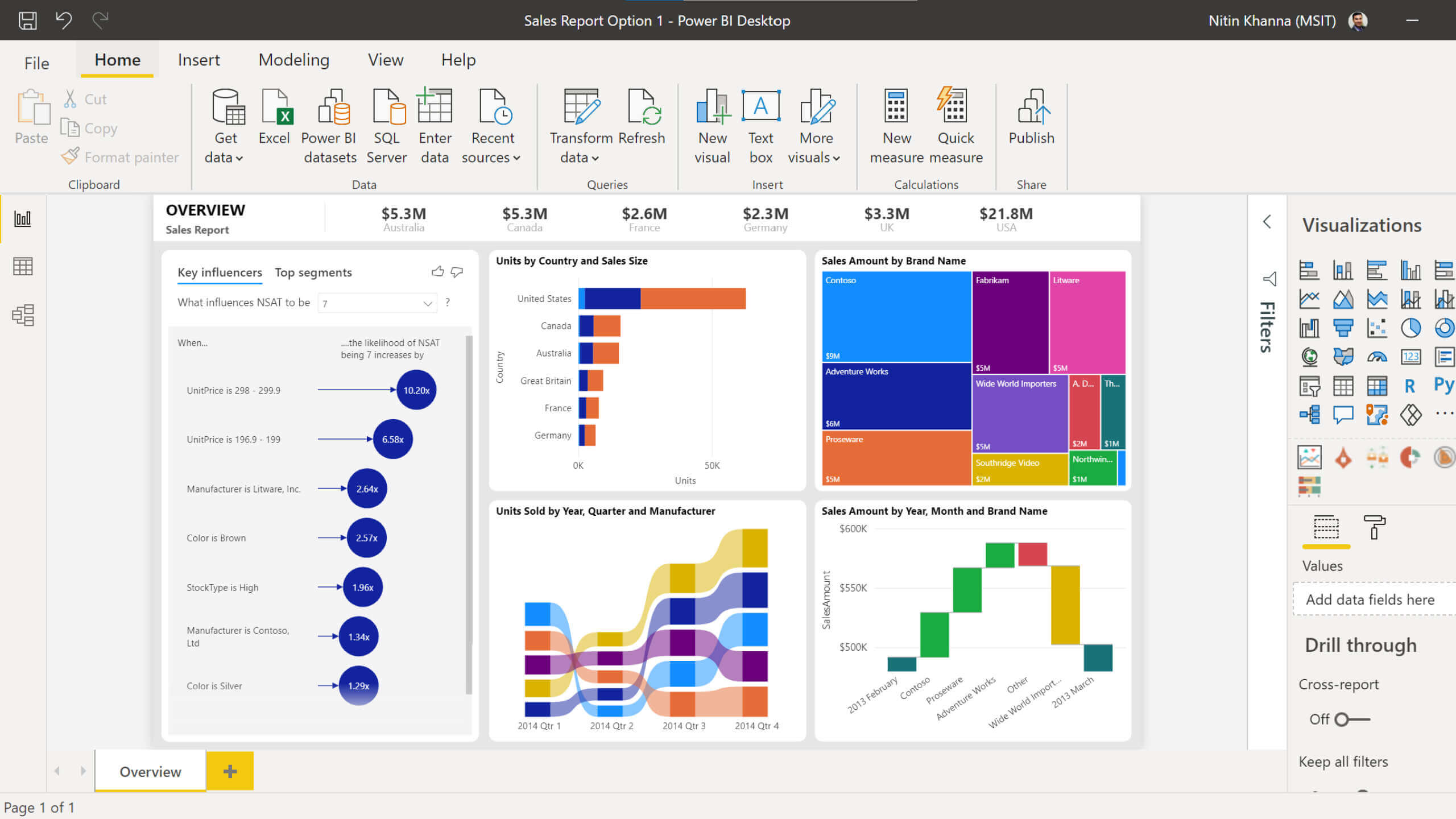
Microsoft Report Builder is best understood as a document-oriented reporting tool. It lets users define what data to pull, how to group it, and exactly how to present it on the page. That makes it useful in environments where structure matters more than visual exploration.
Core capabilities
At its core, microsoft report builder enables teams to create pixel-perfect, paginated reports for formal consumption. Its main capabilities typically include:
- Building reports with exact page dimensions
- Designing layouts for printing and formal exports
- Connecting to supported data sources
- Creating tables, matrices, charts, and parameter-driven views
- Applying grouping, sorting, filters, and expressions
- Reusing shared datasets in governed reporting environments
- Customizing outputs with formulas and conditional logic
This makes it strong for highly structured reporting scenarios where a dashboard would be too loose and a spreadsheet would be too manual.
Core Elements required for effective paginated reporting
- Data source: The system or database the report connects to.
- Dataset: The query result used by the report for rendering.
- Parameters: User inputs that filter or customize report output.
- Data regions: Layout objects such as tables, matrices, and charts.
- Expressions: Logic used to calculate values, format content, or control visibility.
- Page settings: Margins, orientation, page size, and pagination rules.
- Headers and footers: Repeating sections for branding, page numbers, dates, and legal text.
- Export rendering: The engine behavior for PDF, Excel, Word, and other output formats.
Typical report outputs
This tool is commonly used to produce formal business documents such as:
- Invoices
- Financial statements
- Operational summaries
- Compliance documentation
- Scheduled departmental exports
- Management packs
- Inventory sheets
- Customer-facing print documents
The output formats are generally designed to be print-friendly and distribution-ready, including:
- Excel
- Word
- CSV
- Other static or page-oriented formats depending on the deployment environment
The key advantage here is predictability. A finance director wants the monthly board pack to look the same every month. An operations manager wants the shipment summary to print cleanly. A compliance officer needs a report that preserves pagination and legal text. Microsoft Report Builder serves those needs well.
How people usually get started
Most users begin with a simple workflow:
- Install the desktop application on a Windows machine.
- Open the tool and create a new paginated report.
- Connect to a report server, shared dataset, or direct data source.
- Use a wizard or blank canvas to build a table, matrix, or chart report.
- Add parameters, grouping, totals, and formatting.
- Preview the output and adjust page breaks or layout.
- Save locally or publish into the relevant reporting environment.
For many teams, the learning curve is manageable if they already understand structured reporting concepts. The biggest mindset shift is recognizing that this is not a drag-and-drop dashboard canvas for storytelling. It is a report layout tool for exact outputs.
When to use Microsoft Report Builder
Choosing microsoft report builder should be a business decision, not just a technical one. The right question is not “Can it build the report?” but “Is this the kind of reporting problem it is built to solve?”
Best-fit scenarios
Microsoft Report Builder is a strong fit when your organization needs:
- Standardized reports with exact layouts
- Precise page breaks
- Headers and footers that repeat correctly
- Consistent exports for email or archive
- Self-service report authoring within an SSRS-style environment
- Formal documents generated from existing governed data models
Typical examples include:
- Monthly financial books
- Insurance statements
- Regulatory submissions
- Purchase order printouts
- Production run summaries
- Employee roster documents
- Customer billing packs
It is also useful when business users need to create reports without opening Visual Studio or working inside a full developer toolchain. In that sense, it bridges governance and usability better than many developer-only tools.
When it is not the best choice
Microsoft Report Builder is usually not the best fit for:
- Highly interactive dashboards
- Exploratory data analysis
- Real-time operational monitoring
- Collaborative, cloud-first BI workflows
- Modern visual storytelling for executives
- Broad ad hoc analysis across large semantic models
If your stakeholders want to click through visuals, cross-filter dashboards, explore trends dynamically, or share live cloud-native analytics, this tool will feel restrictive. It was built for formal reporting, not immersive analytics.
A good rule of thumb is this:
- If the report must print perfectly, consider Report Builder.
- If the report must invite exploration, consider a dashboard platform instead.
Microsoft Report Builder vs SSRS Designer
This is where many teams get confused. Both Microsoft Report Builder and SSRS Designer work with paginated reports, and both support many of the same core report concepts. The real difference is less about what they can theoretically build and more about who uses them and how they fit into the delivery workflow.
Key differences in audience and workflow
Microsoft Report Builder is typically aimed at:
- Power users
- Analysts
- Report authors
- IT staff who need a simpler standalone experience
SSRS Designer in Visual Studio is typically aimed at:
- Developers
- BI engineers
- Enterprise reporting teams
- Organizations with version-controlled deployment processes
Here is the practical difference:
| Area | Microsoft Report Builder | SSRS Designer |
|---|---|---|
| Primary user | Business power user or analyst | Developer or BI engineer |
| Setup | Standalone desktop install | Visual Studio-based environment |
| Workflow | Faster for one-off or business-authored reports | Better for structured development projects |
| Project structure | Simpler, report-centric | Solution/project-based |
| Source control | Less natural for enterprise dev workflows | Better aligned with source control and team development |
| Deployment style | Often direct save/publish | More formal build and deployment process |
If your team operates with release pipelines, branching, and development standards, SSRS Designer often fits better. If a business unit needs to create or adjust a parameterized report quickly, Microsoft Report Builder is often more approachable.
Feature overlap and limitations
Both tools support many shared paginated reporting concepts, including:
- Tables and matrices
- Charts
- Parameters
- Grouping and sorting
- Expressions
- Print-oriented layouts
- Server publishing in the right environment
However, the limitations begin to show when complexity increases. SSRS Designer tends to be stronger when:
- Reports are part of a broader BI solution
- Multiple developers need controlled collaboration
- Enterprise deployment standards matter
- Advanced project organization is required
Microsoft Report Builder tends to be preferable when:
- The report author is not a developer
- Speed matters more than project structure
- The reporting use case is narrower and document-centric
- Users need to edit reports directly without opening a full development IDE
Which one to choose
Use this decision logic:
- Choose Microsoft Report Builder if your users are business-oriented, the reports are standardized, and you want simpler authoring.
- Choose SSRS Designer if your reporting team is developer-led, follows source control discipline, and manages complex enterprise reporting projects.
- Choose based on governance maturity as much as technical capability.
In many enterprises, both tools coexist. Developers build core report assets and frameworks, while business power users maintain specific report variants through Report Builder.
Microsoft Report Builder vs Power BI Report Builder
The second major confusion point is the difference between microsoft report builder and Power BI Report Builder. They sound similar because they serve a similar report type: paginated reports. But the platform context changes how they are used, published, and governed.
Shared purpose and important distinctions
Both tools are used to create paginated, print-friendly reports. Both are appropriate when exact page layout matters. Both support structured reporting concepts like parameters, tables, grouping, and export formatting.
The distinction is largely about destination and ecosystem alignment.
- Microsoft Report Builder is closely associated with SSRS-style reporting workflows and report server environments.
- Power BI Report Builder is aligned more directly with Power BI paginated reporting scenarios and Power BI service publishing where supported.
That means the right tool often depends on where your reports will live after they are built.
| Area | Microsoft Report Builder | Power BI Report Builder |
|---|---|---|
| Main ecosystem | SSRS / report server environments | Power BI paginated reporting environments |
| Typical publishing destination | Reporting Services or compatible report server workflow | Power BI service or Power BI Report Server scenarios |
| Primary reason to use | Traditional paginated enterprise reporting | Paginated reporting within a Power BI-aligned strategy |
| Team alignment | SSRS-focused teams | Power BI-focused teams |
Licensing and publishing rules can also influence the choice. If your enterprise reporting model already revolves around SSRS infrastructure, Microsoft Report Builder is the natural fit. If your reporting strategy is moving toward Power BI-based distribution, Power BI Report Builder may make more sense.
Common points of confusion
Why do multiple report-building tools exist at all?
Because they solve adjacent, not identical, problems.
The naming overlap creates confusion for new users, but the distinction becomes clearer when you ask three practical questions:
- Are you creating paginated reports or interactive dashboards?
- Are you publishing to an SSRS/report server workflow or a Power BI workflow?
- Is your audience expecting fixed documents or interactive analysis?
Many users initially assume all Microsoft reporting tools are interchangeable. They are not. The report type may overlap, but deployment model, ecosystem, and administration model can be very different.
Practical selection guide
Choose Microsoft Report Builder if:
- You work mainly in SSRS or traditional report server environments
- Your organization runs established on-prem or server-based paginated reporting workflows
- Your output priorities are print accuracy and scheduled distribution
Choose Power BI Report Builder if:
- Your reporting strategy centers on Power BI
- You need paginated reports within a Power BI-aligned architecture
- Your team already manages reports in Power BI-oriented workflows
Choose based on your publishing destination first, not just the authoring experience. That one decision eliminates most tool confusion.
How to start, install, and learn microsoft report builder faster
For many users, the hardest part is not building the first report. It is understanding where to start and how to shorten the learning curve. The fastest path is to begin with a simple report pattern and master the report logic before worrying about advanced formatting.
Installation and setup
To install microsoft report builder efficiently, keep the process straightforward:
- Download the tool from the official Microsoft download page or launch it through the relevant report portal workflow if your environment supports that.
- Confirm that the target machine meets the Windows and framework requirements.
- Install the standalone application.
- If applicable, set the default report server URL during setup or configure it later in options.
- Open the tool and verify that you can create a new report and connect to a valid data source.
Before installing, check:
- Supported Windows version
- Required .NET components
- Access permissions to the report server, if used
- Availability of shared data sources or datasets in your environment
For enterprise IT teams, standardizing installation and default server settings can save significant onboarding time.
First steps after launch
A clean first exercise is to build a simple table report.
Step-by-step best practices from a consulting perspective
-
Start with one business question, not one complex report
- Build a simple report that answers a single operational question, such as monthly sales by region or invoice status by customer.
- Avoid trying to recreate a full management pack on day one.
-
Use an existing governed data source if possible
- Do not let every user write inconsistent ad hoc queries.
- Start from approved datasets or shared models to reduce logic drift.
-
Design for output first
- Decide upfront whether the report will be printed, emailed as PDF, or exported to Excel.
- Layout choices should follow the final delivery channel.
-
Add parameters early
- Build filters for date range, region, department, or business unit from the start.
- Parameter-driven reports reduce report sprawl and improve reuse.
-
Preview often and test exports
- A report that looks good on canvas can still fail in PDF or Excel layout.
- Validate page breaks, totals, row expansion, and header repetition during development.
These practices prevent the most common reporting failures: misaligned exports, duplicate report versions, and data logic inconsistencies.
Learning resources and tutorials
The fastest way to learn microsoft report builder is through a practical sequence:
- Begin with a basic table report
- Move to matrix reports with grouping and totals
- Add parameters and filters
- Practice expressions for conditional formatting and calculations
- Test exports across PDF and Excel
- Build one real business report from your own environment
A strong learning path typically includes:
- Official Microsoft documentation for installation and feature references
- Beginner tutorials for creating first reports
- Internal sample reports from your BI or IT team
- Hands-on practice with a real operational dataset
The key is repetition. Report authors become effective much faster when they build three to five practical reports in sequence instead of reading documentation passively.
Build paginated reporting faster with FineReport
Microsoft Report Builder remains useful for classic paginated reporting, especially in SSRS-oriented environments. But from an implementation and operations perspective, building this manually is complex; use FineReport to utilize ready-made templates and automate this entire workflow.
For enterprise teams, the challenge is rarely just report design. It is the full reporting lifecycle:
- Connecting to multiple data sources
- Standardizing templates
- Reducing manual formatting work
- Automating recurring distribution
- Supporting both dashboards and print-ready reports
- Scaling report delivery without overloading IT
This is where FineReport becomes a stronger operational choice.
With FineReport, teams can:
- Use ready-made templates for recurring business scenarios
- Build both dashboard-style analytics and pixel-perfect reports
- Automate scheduled reporting workflows
- Simplify report development for business and IT users alike
- Reduce dependency on fragmented toolchains for design, export, and distribution
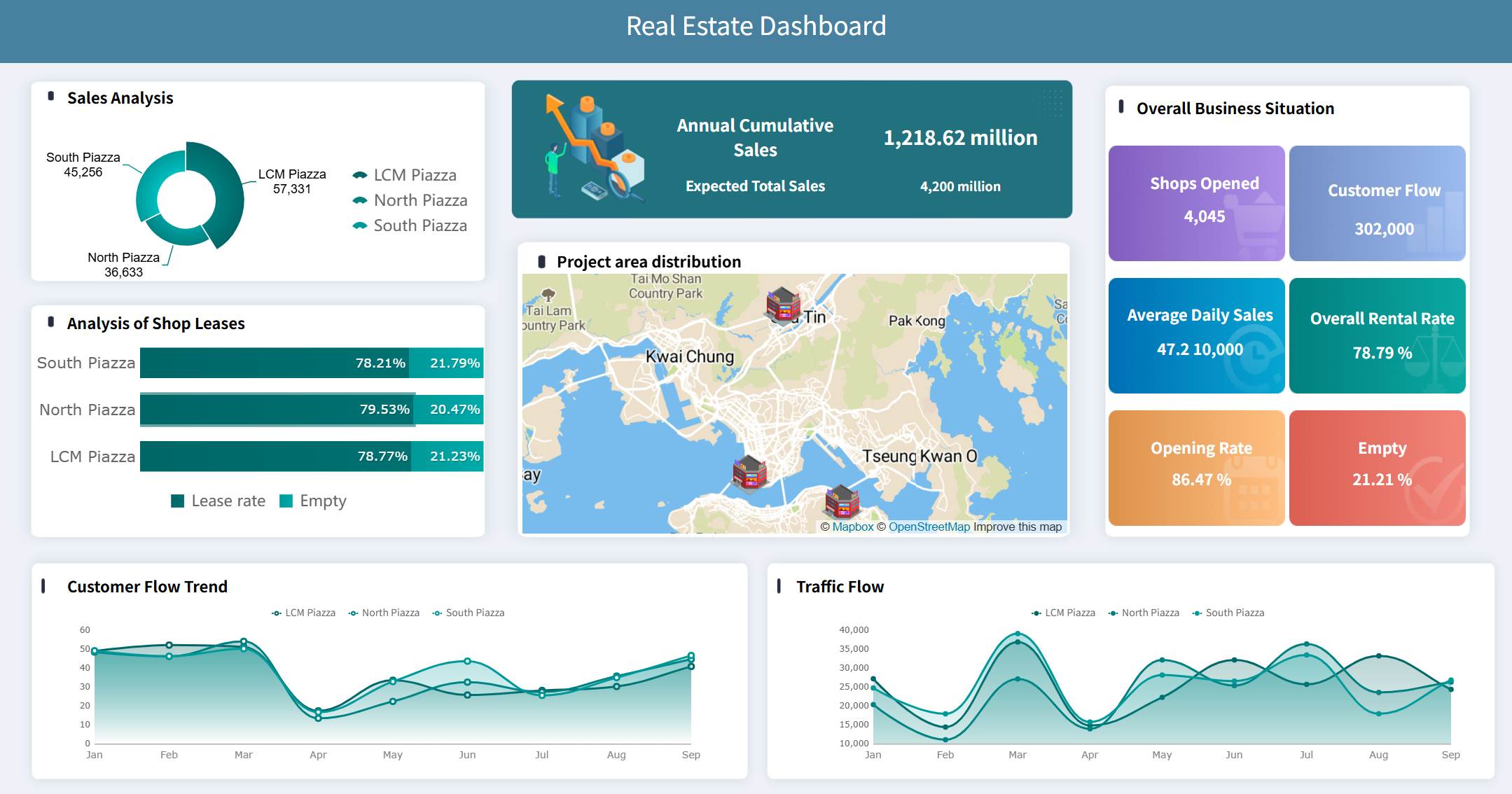
 Get Ready-to-Use Dashboard Templates in Fine Gallery
For decision-makers, the value proposition is clear: instead of maintaining a manual reporting process across disconnected tools, you can centralize report building, automate output generation, and accelerate delivery to the business.
If your organization is evaluating reporting platforms at scale, FineReport is not just a replacement conversation. It is a productivity and governance conversation.
In short, use Microsoft Report Builder when you need straightforward paginated reporting within the Microsoft ecosystem. But if your enterprise needs faster development, broader reporting flexibility, and lower manual overhead, FineReport is the more scalable path forward.
FAQs
Microsoft Report Builder is used to create paginated reports with fixed layouts for printing, PDF export, Excel delivery, and formal business documents. It is best for outputs like invoices, statements, audit packs, and scheduled operational reports.