
If your department is still relying on static spreadsheets, disconnected BI views, or overly broad executive reports, decision-making slows down fast. Teams miss trends, managers react too late, and leaders spend more time reconciling numbers than acting on them. That is why strong reporting dashboard examples matter: they show how to design dashboards that support real departmental decisions, not just display data.
For IT managers, finance leaders, sales directors, and operations heads, a departmental dashboard should answer one question clearly: What do I need to know right now to improve performance in my area? Unlike company-wide dashboards, departmental reporting goes deeper into process metrics, operational exceptions, and role-specific actions.
This guide breaks down practical dashboard layouts by department, explains which KPI structures work best, and shows how to turn inspiration into a dashboard people actually use.
 Click To Try The Dashboard
What makes great reporting dashboard examples by department
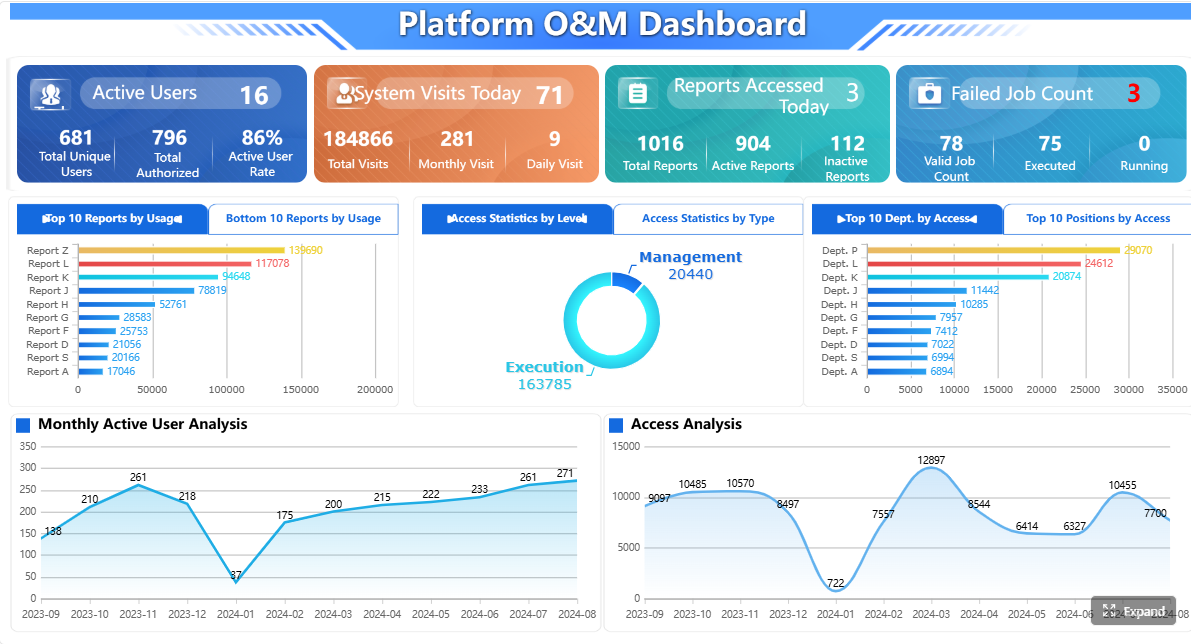
A departmental dashboard is designed for managers and teams who need to monitor performance, spot issues early, and take action within a specific function. That makes it different from an executive dashboard, which is broader, more summarized, and focused on cross-business outcomes.
A CFO may want a high-level margin and cash snapshot. A finance manager, however, needs visibility into variances, aging receivables, and forecast movement. The same pattern applies in sales, operations, and IT: departmental dashboards must support workflow decisions, not just status reporting.
Core elements of practical dashboard layouts
The best reporting dashboard examples usually share the same structural logic:
- KPI hierarchy: Put the most important summary measures at the top, followed by supporting diagnostics underneath.
- Trend views: Show whether performance is improving, stable, or declining over time.
- Filters: Allow users to isolate business units, regions, teams, periods, products, or service lines.
- Benchmarks: Compare actuals against targets, budgets, SLAs, prior periods, or peer groups.
- Exception highlights: Surface overdue items, threshold breaches, risks, and anomalies so managers know where to focus.
A practical dashboard is not just visually clean. It reflects how decisions are made. If a sales leader runs weekly pipeline reviews, the dashboard should support stage analysis and rep coaching. If operations teams manage daily throughput, the dashboard should emphasize bottlenecks and backlog risk.
How audience, cadence, and freshness shape dashboard design
Three factors should shape every departmental dashboard:
1. Audience fit
A frontline manager needs detailed operational controls. A department head needs summary KPIs plus drill-down paths. Design should match the role, not the data source.
2. Decision cadence
Daily dashboards need alerts, workflow status, and exception views. Weekly dashboards need trends and comparative context. Monthly dashboards should emphasize analysis, commentary, and variance drivers.
3. Data freshness
Some teams need near real-time updates, especially in operations and IT. Others can work effectively with daily or periodic refreshes, such as finance close reporting. A mismatch here reduces trust and adoption.
Key Metrics (KPIs) every departmental dashboard should structure clearly
Below are the core KPI categories that strong departmental dashboards should include:
- Primary outcome KPI: The top-line measure the team is accountable for, such as revenue, margin, uptime, or SLA attainment.
- Driver KPIs: The inputs influencing the main outcome, such as conversion rate, cycle time, utilization, or ticket volume.
- Variance KPI: The gap between actual and target, budget, forecast, or benchmark.
- Trend KPI: Performance movement over time, used to distinguish one-off issues from persistent patterns.
- Segmentation KPI: Breakdown by region, rep, product, customer group, system, or team.
- Exception KPI: A threshold-based measure that flags risk, backlog, overdue work, or unusual activity.
- Forecast KPI: A forward-looking indicator used to project likely outcomes based on current performance.
- Efficiency KPI: A ratio that shows resource productivity, such as cost per output, throughput per resource, or MTTR.
- Quality KPI: A measure of error, defect, accuracy, or compliance.
- Workload KPI: The current volume of open tasks, cases, tickets, orders, or projects affecting capacity.
 Click To Try The Dashboard
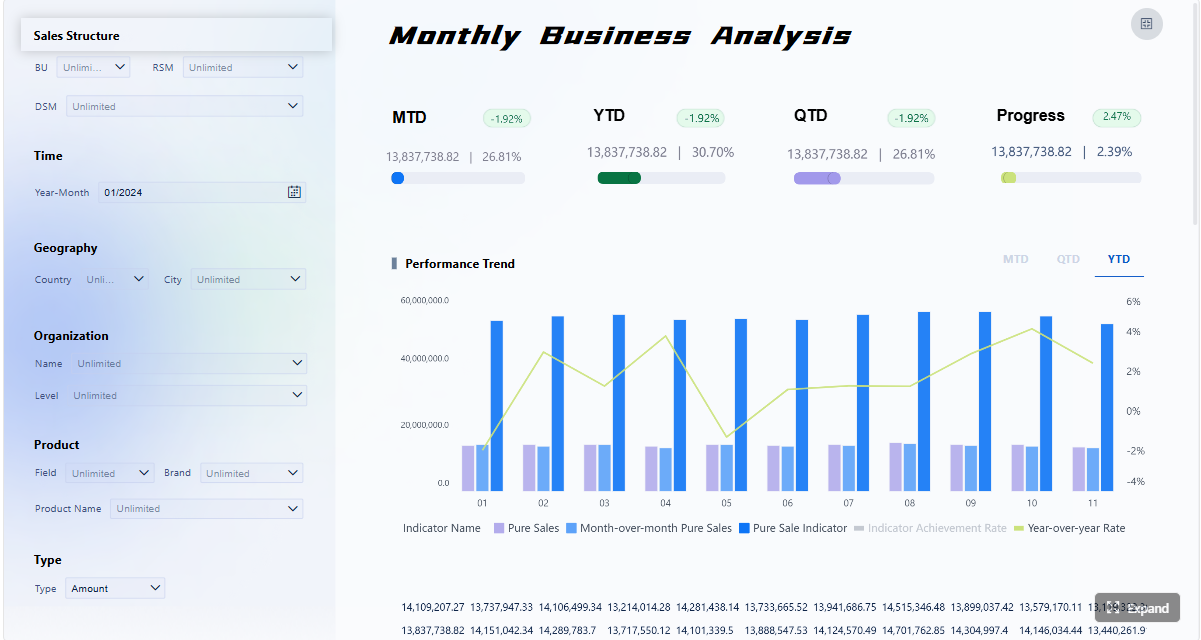
Sales reporting dashboard examples
Sales dashboards work best when they help leaders answer three questions quickly: Are we on pace? Where is the pipeline breaking down? Which reps, accounts, or territories need attention right now?
Pipeline and revenue forecast layout
This layout is ideal for sales managers, regional directors, and revenue leaders who need a reliable weekly forecasting view.
At the top, use scorecards for:
- Total pipeline
- Weighted pipeline
- Forecast vs target
- Closed-won revenue
- Average deal size
- Stage conversion rate
In the middle section, use a funnel and trend charts to show:
- Lead-to-opportunity flow
- Opportunity progression by stage
- Stage-to-stage conversion
- Pipeline creation trend
- Forecast movement over time
In the lower section, use rep-level tables with conditional formatting for:
- Pipeline coverage by rep
- Commit vs best-case forecast
- Win rate
- Average sales cycle length
- Stalled deals
This layout helps sales leaders spot bottlenecks fast. If top-of-funnel volume looks healthy but stage conversion drops mid-funnel, the issue may be qualification, discovery, or pricing. If weighted pipeline looks strong but forecast attainment is weak, reps may be overestimating deal quality.
Best layout choices for fast action
- Put forecast vs target in the top-left, where executives naturally look first.
- Use a conversion funnel next to stage aging to expose where deals are getting stuck.
- Add filters for region, segment, product line, and manager.
- Highlight stale opportunities and low-coverage territories in red or amber.
Account and territory performance layout
This dashboard layout is more useful for account-based sales teams, customer success-led revenue teams, and territory managers.
Top scorecards should include:
- Renewal rate
- Expansion revenue
- Net revenue retention
- Win rate
- Average sales cycle
- Territory quota attainment
A practical middle section might include:
- Territory comparison bars
- Account tier performance table
- Renewal and upsell pipeline by month
- Revenue mix by new vs existing business
The lower section should support drill-down:
- Account-level health table
- Open renewals due in next 90 days
- At-risk accounts
- Top expansion opportunities
When to use tables, scorecards, and maps
- Tables work best for account-level follow-up and rep action lists.
- Scorecards are best for target attainment, renewals due, and growth metrics.
- Maps are useful when territory planning depends on geographic density, field coverage, or regional imbalance.
For enterprise teams, maps should not replace core KPIs. They are supporting visuals, not the main reporting structure.
 Click To Try The Dashboard
Finance reporting dashboard examples
Finance dashboards must balance control and clarity. Leaders need a strategic view of financial health, while analysts need enough detail to investigate the causes behind variances.
Budget vs actual and cash flow layout
This is one of the most common and valuable reporting dashboard examples for finance teams.
At the top, place summary scorecards for:
- Revenue
- Operating expenses
- Gross margin
- EBITDA or operating income
- Budget variance
- Cash position
In the center, use line and bar visuals for:
- Budget vs actual by month
- Revenue and expense trends
- Rolling forecast movement
- Cash inflow and outflow patterns
In the lower section, add daily monitoring widgets for:
- AP due
- AR collections
- Cash runway
- Short-term forecast risk
- Department spending over threshold
The key design principle is separation. Strategic metrics should remain prominent and stable, while daily liquidity or transaction-focused widgets should sit below or in a side panel. This keeps the dashboard usable for both leadership review and finance operations.
What finance teams should emphasize
- Make variance values visible in both absolute and percentage terms.
- Compare current month, quarter-to-date, and year-to-date views.
- Use commentary fields or indicator icons for major deviations.
- Keep drill paths available from summary KPI to cost center, entity, or account category.
Profitability and risk monitoring layout
This layout is built for controllers, FP&A teams, and business-unit finance leaders.
Top-level KPIs should include:
- Profitability by product or business unit
- Contribution margin
- Burn rate
- Aging receivables
- Working capital trend
- Scenario-adjusted forecast
The center of the dashboard should show:
- Profitability heatmaps by product line or region
- AR aging buckets
- Scenario comparison views
- Margin trend by business unit
The bottom section should support exception analysis:
- Customers with overdue receivables
- Products with declining margin
- Cost spikes by category
- Forecast scenarios under different demand or spend assumptions
Why drill-down matters in monthly review
Monthly finance meetings often stall when teams see a negative variance but cannot trace it quickly. Strong drill-down paths solve that. A manager should be able to move from total margin decline to region, then product family, then customer or cost driver without opening multiple disconnected reports.
 Click To Try The Dashboard
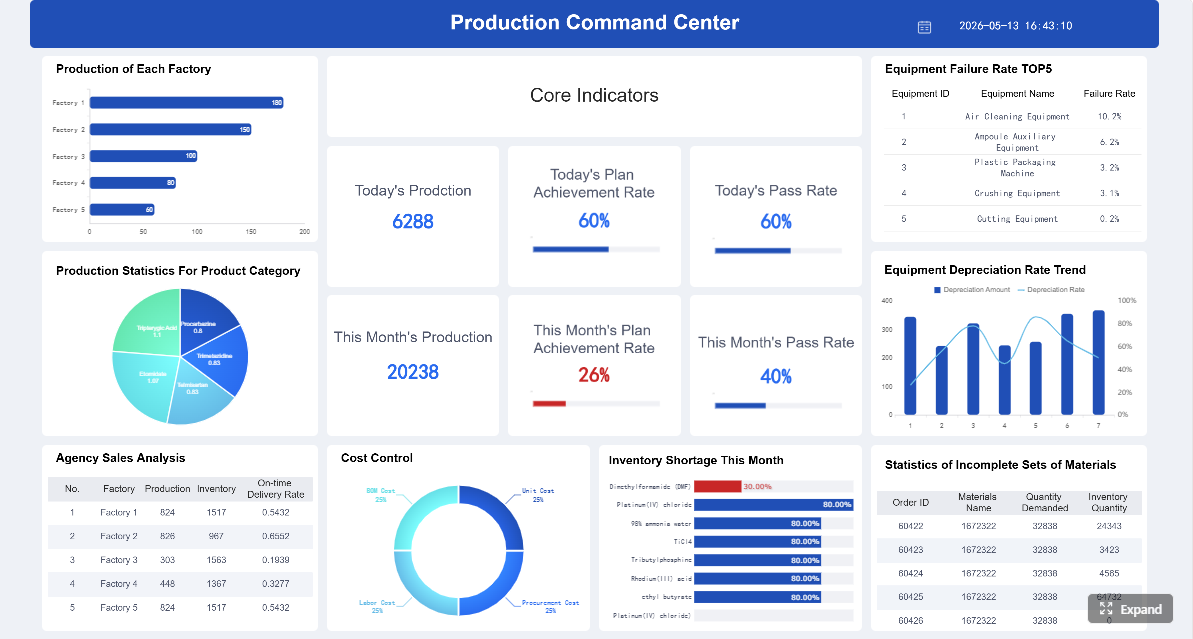
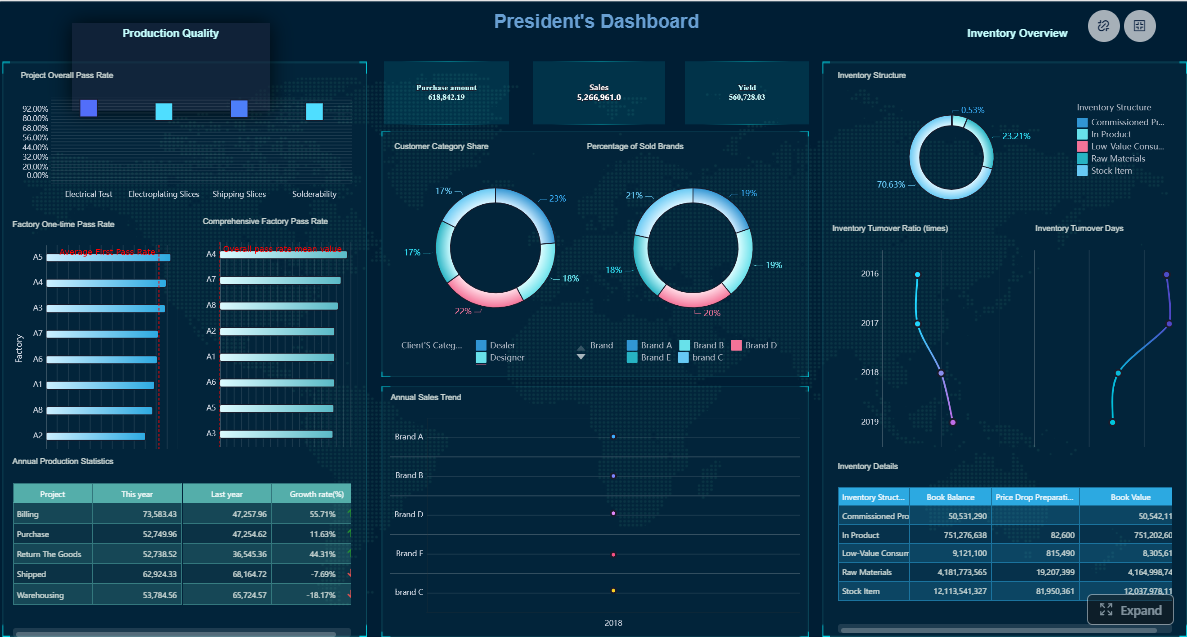
Operations reporting dashboard examples
Operations dashboards are where reporting must become immediately actionable. If layouts are too abstract, teams cannot use them during shift reviews, service standups, or planning meetings.
Service delivery and process efficiency layout
This layout is built for operations directors, plant managers, service leaders, and process owners.
Top summary metrics should include:
- Throughput
- Cycle time
- Backlog
- SLA attainment
- Defect rate
- Resource utilization
In the middle section, show:
- Throughput trend by day or week
- Backlog aging
- SLA performance by team or workflow
- Process bottleneck view
- Capacity vs demand comparison
In the lower section, provide action views:
- Orders, jobs, or cases at risk
- Teams below target
- Defect root-cause categories
- Resource allocation by shift or line
This type of layout works because it balances immediate visibility with trend analysis. Operations teams need to know what is wrong now, but leaders also need to know whether recurring issues are structural.
Real-time vs weekly trend balance
A good operations dashboard usually combines:
- Real-time indicators for open backlog, workflow status, and SLA risk
- Weekly trends for throughput, quality, and utilization performance
That combination prevents overreaction to short-term spikes while still enabling rapid intervention.
Inventory and fulfillment layout
This dashboard supports supply chain managers, warehouse leaders, and fulfillment teams.
Top KPIs should include:
- Current stock levels
- Stockout rate
- Order accuracy
- On-time delivery
- Inventory turnover
- Supplier performance score
The middle section should include:
- Inventory by category or warehouse
- Stockout trend
- Orders by status
- Fulfillment cycle time
- Supplier OTIF performance
The bottom section should focus on alerts and workflow:
- Critical low-stock items
- Delayed orders
- Picking and packing queue
- Supplier exceptions
- Returns or order error analysis
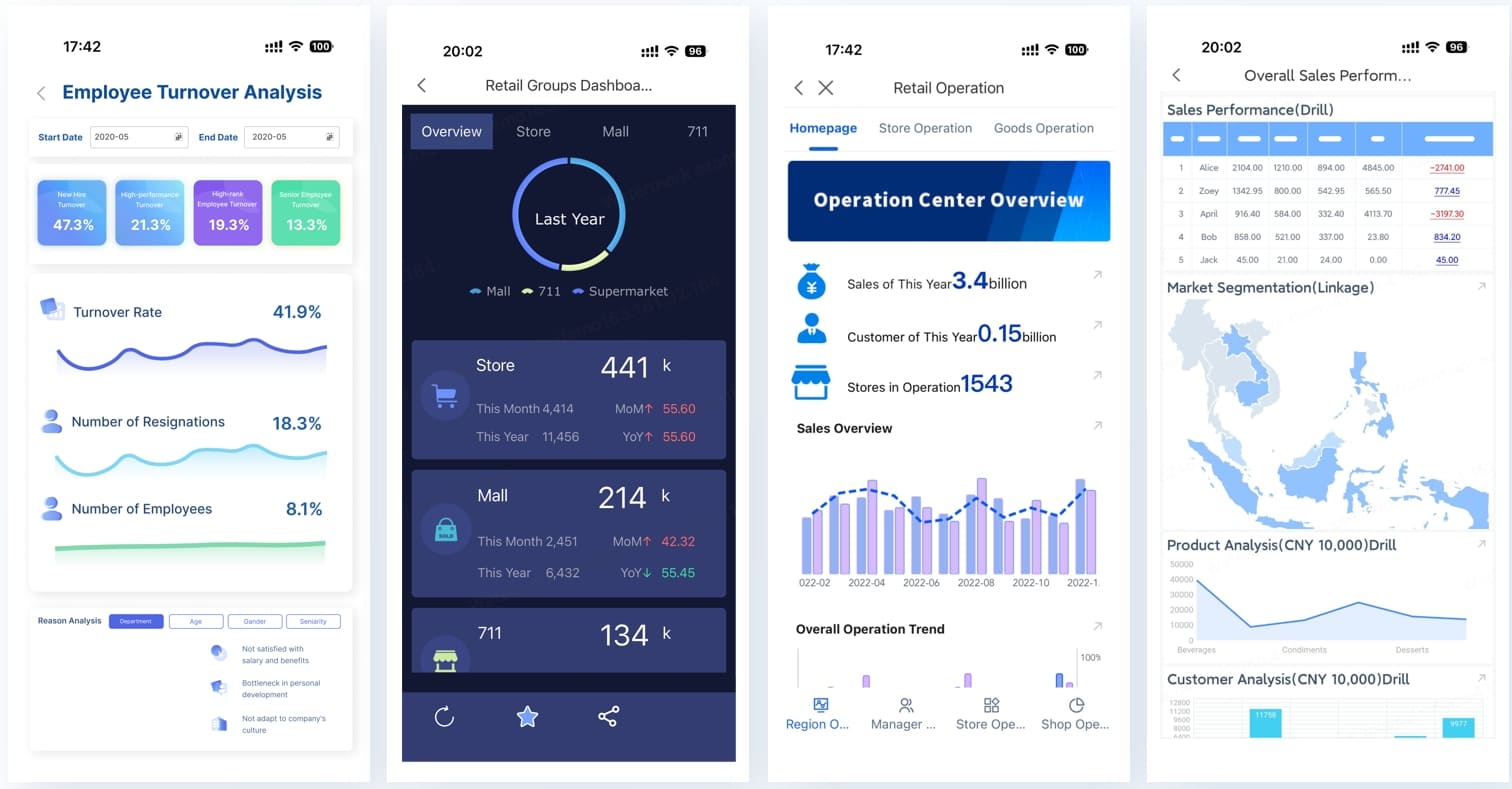
How to organize alerts and workflow status in one view
The most effective layout is split-screen:
- Left side for KPI summaries and trends
- Right side for alert queues and task-based workflow status
This lets leadership review overall performance without losing visibility into operational exceptions that need same-day attention.
IT reporting dashboard examples
IT dashboards must serve two audiences at once: leaders who need summary health and risk signals, and technical teams who need deeper diagnostics. The best designs separate those layers cleanly.
Infrastructure and system health layout
This dashboard is essential for infrastructure managers, NOC teams, and IT leadership.
Top-level scorecards should include:
- Uptime
- Latency
- Incident volume
- Mean time to resolve
- Capacity utilization
- Security alert count
The middle section should show:
- System health overview by environment or service
- Incident trend over time
- Capacity and performance trends
- Security alert severity distribution
- Service availability by application
The lower section should support deeper operations:
- Open incidents by priority
- Hosts or services breaching thresholds
- Capacity hotspots
- Repeated failure patterns
- Security alert queue
Separating summary health from diagnostics
The top half of the dashboard should work for managers in under 30 seconds. They should immediately see if the environment is healthy, degraded, or at risk. Detailed logs, system traces, or infrastructure components belong in drill-down views or secondary tabs, not on the main reporting page.
Project and support performance layout
For IT service managers, PMO leads, and support leaders, this layout bridges support operations and delivery oversight.
Top KPIs should include:
- Ticket backlog
- Resolution SLA attainment
- First response time
- Change success rate
- Project milestone completion
- Team workload
The middle section should contain:
- Ticket inflow vs resolution trend
- Backlog by priority
- SLA breach risk by queue
- Change calendar success/failure trend
- Project progress by initiative
The lower section should enable workload management:
- Technician or team assignment table
- Open high-priority tickets
- Delayed milestones
- Capacity by team
- Escalation queue
How this layout aligns support with delivery goals
Many IT departments struggle because support reporting and project reporting live in separate tools and separate conversations. A combined layout helps managers balance operational stability with transformation work. If ticket load is overwhelming a team, project milestone risk becomes visible earlier.
How to choose the right dashboard template and adapt real-world inspiration
Many teams start by browsing public galleries, template libraries, or BI showcases. That is useful, but copying a pretty dashboard rarely produces a usable one. The real test is whether the example matches your audience, metrics, and decision workflow.
Where to borrow ideas from and when
Different dashboard collections are useful for different purposes:
- Dashboard Examples and Reporting Templates libraries: Best when you need quick wireframe inspiration and cross-functional KPI ideas.
- Qlik galleries and other BI showcases: Useful for advanced interactivity, comparative analysis, and more technical visualization patterns.
- ClearPoint-style executive views: Better when you need strategic scorecards, target tracking, and summary presentation logic.
- Power BI showcases and operational BI collections: Ideal when you want examples of drill-down, workflow integration, and departmental analytics at scale.
- Other real-world BI collections: Good for spotting layout conventions by role, especially in sales operations, service management, and supply chain use cases.
The right move is not to copy one example exactly. Instead, combine the strongest ideas:
- One layout pattern for KPI hierarchy
- Another for trend comparison
- Another for exception handling
- Another for filters and drill-down logic
How to evaluate reporting dashboard examples before adopting them
Use these three filters first:
1. Audience fit
Ask whether the dashboard is clearly built for a sales manager, controller, operations lead, or IT manager. If the audience is vague, the dashboard will usually be too generic.
2. Metric relevance
Check whether the KPIs directly reflect the decisions your department actually makes. Attractive visuals cannot fix irrelevant metrics.
3. Implementation complexity
Some examples look polished because they rely on extensive modeling, multiple source systems, and custom logic. Be realistic about what your team can maintain.
4 best practices for implementing a departmental dashboard
Here is the consultant-level approach I recommend for turning inspiration into a working dashboard:
1. Start with review meetings, not charts
Map the recurring decisions your team makes weekly or monthly. Build the dashboard around those conversations. If the dashboard is not used in a real meeting, adoption will suffer.
2. Limit the top layer to 5 to 8 critical KPIs
Do not overload the first screen. Keep the headline metrics focused, then provide drill-downs for analysis.
3. Design exceptions to be unmistakable
Use threshold colors, alert flags, and ranked issue tables. Managers should know within seconds what needs attention.
4. Validate refresh logic and ownership
Every metric needs a source, definition, owner, and refresh cadence. Without governance, trust collapses quickly.
Practical checklist: turn inspiration into a dashboard your department will actually use
Before building, confirm the following:
- Audience defined: Who is the primary user?
- Decision purpose clear: What actions should this dashboard drive?
- Top KPIs selected: Which 5 to 8 metrics matter most?
- Benchmark logic set: What does success or failure look like?
- Trend windows defined: Daily, weekly, monthly, quarterly?
- Filters chosen: Region, team, account, product, period, service, or entity?
- Exceptions prioritized: Which alerts need escalation?
- Drill-down path mapped: How will users investigate problems?
- Data refresh aligned: Real-time, hourly, daily, or monthly?
- Ownership assigned: Who maintains definitions and data quality?
- Adoption planned: In which meetings or workflows will this be used?
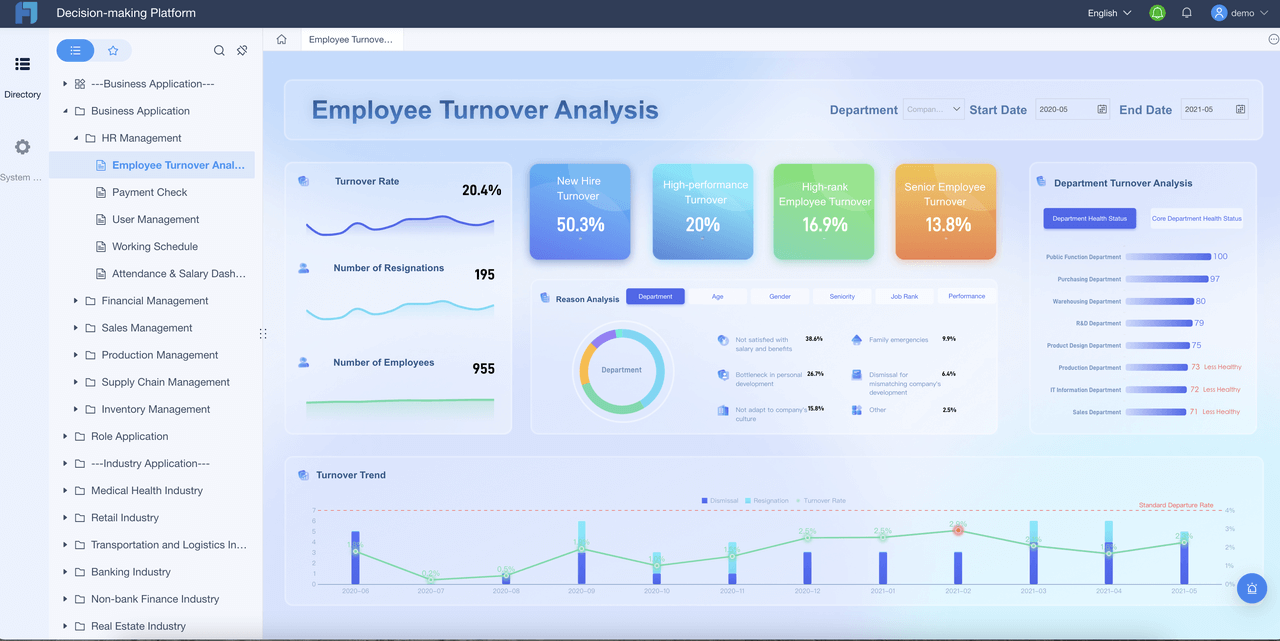
Build faster with FineReport instead of creating every dashboard manually
The reality is simple: building strong departmental dashboards manually is complex. You need data integration, KPI logic, permissions, drill-down design, alert workflows, templates, and consistent refresh schedules. For most teams, that means long development cycles and ongoing maintenance overhead.
This is where FineReport becomes the practical choice.
Building this manually is complex; use FineReport to utilize ready-made templates and automate this entire workflow. With FineReport, teams can accelerate dashboard delivery across sales, finance, operations, and IT by using flexible templates, connecting multiple data sources, and standardizing KPI reporting without rebuilding every view from scratch.
Why enterprise teams use FineReport for departmental dashboard deployment:
- Ready-made reporting templates for common business scenarios
- Flexible drag-and-drop design for fast layout adaptation by department
- Drill-down and interactive filtering for manager-level investigation
- Automated data refresh and scheduled distribution to reduce manual reporting work
- Role-based access control for secure departmental visibility
- Scalable deployment across multiple teams, entities, or regions
If your goal is to move from dashboard inspiration to operational adoption, FineReport helps bridge the gap. Instead of spending months assembling dashboards manually, you can standardize layouts, automate workflows, and give each department a reporting environment that supports real decisions.
The best reporting dashboard examples are not just attractive. They are usable, trusted, and built around how departments run. FineReport helps you get there faster.
FAQs
A reporting dashboard by department is a role-specific view of KPIs, trends, and exceptions for teams like sales, finance, operations, or IT. It helps managers make faster decisions within their own workflow instead of relying on broad company-level reports.