An expense report in Excel is one of the fastest ways for finance teams, operations managers, and department leads to standardize reimbursements without adding another software tool to the stack. If your team is still chasing receipts in email threads, fixing broken totals, or struggling to see where monthly spending goes, a well-built Excel expense report can solve the basics: cleaner records, faster reviews, and more consistent approvals.
Click To Try The Dashboard
All reports in this article are built with FineReport
What an expense report in Excel helps your team do
An expense report in Excel gives teams a practical way to log reimbursable costs, monitor project spend, and review recurring business expenses without building a full expense management system. For small teams or departments with simple approval needs, Excel remains a strong option because it is familiar, flexible, and quick to deploy.
When built properly, it helps your team:
Track employee reimbursements in one standard format
Compare spending across categories, projects, or time periods
Reduce manual review time during month-end close
Keep a basic audit trail for approvals and receipt checks
Avoid inconsistent reporting across departments
When Excel is the right choice
Excel works best when your organization has relatively straightforward expense reporting requirements. Typical use cases include:
Small teams with limited monthly submissions
Departmental expense tracking without complex policy rules
Project-based teams that need to monitor client or campaign costs
Travel reimbursement logs with light approval workflows
Monthly operating expense reviews for managers
If your volume is manageable and your approval chain is simple, Excel can be the most efficient starting point.
Core business value for teams
The reason many companies still use Excel is simple: it balances control and ease of use.
Visibility
A good spreadsheet makes spending visible by employee, category, project, or month. Managers can quickly see patterns instead of reviewing scattered receipts one by one.
Consistency
Using one template ensures everyone submits expense data in the same structure. That makes finance reviews faster and reduces disputes over missing details.
Easier monthly reviews
When totals, tax, and categories are already organized in the file, month-end review becomes much easier. Teams spend less time cleaning data and more time acting on it.
Key Metrics (KPIs)
To make an expense report in Excel useful beyond reimbursement, track these core metrics:
Total Expense Amount: The full value of all submitted expenses in a report period.
Reimbursable Amount: The portion approved for repayment to the employee.
Expense by Category: Spending grouped into travel, meals, lodging, office supplies, software, and other classes.
Expense by Department: Costs attributed to departments such as sales, marketing, operations, or IT.
Expense by Project or Client: Spend linked to a specific initiative, contract, or customer account.
Tax Amount: The tax portion of each line item for accounting and compliance review.
Submission Cycle Time: Time between expense date and report submission.
Approval Turnaround Time: Time between report submission and final approval.
Missing Receipt Rate: Percentage of line items without required documentation.
Rejected or Returned Claims: Number or percentage of expense entries sent back for correction.
How to create a business expense report in 7 simple steps
Building an expense report in Excel does not need to be complicated. The key is to design the sheet around your actual reimbursement workflow, not just around columns and formulas.
1. Define the reporting purpose and policy
Before you open Excel, define what the report needs to do.
Ask:
Who will submit expense reports?
Which expenses are reimbursable?
What supporting documents are required?
How often are reports due?
Who approves them?
This matters because your sheet should reflect policy. If mileage is reimbursable, include mileage fields. If meal expenses need business purpose notes, add a required notes column. If reports are monthly, set the template up around a monthly reporting period.
A seasoned finance team will always start with policy first and spreadsheet design second.
2. List the fields every report should include
Every effective expense report template starts with the right structure. At minimum, include fields that help both submitters and approvers understand each transaction clearly.
Recommended fields:
Report ID
Employee name
Department or team
Manager or approver
Reporting period
Expense date
Vendor
Expense description
Category
Project or client code
Payment method
Amount before tax
Tax amount
Total amount
Receipt attached
Reimbursement status
Approval sign-off
Notes
These fields create a complete record and reduce back-and-forth questions during review.
3. Build the layout in Excel
Now create the actual sheet. Keep it simple and readable.
Best-practice layout:
Put report information at the top
Use a separate section for employee details
Add a clean line-item table for expenses
Reserve the bottom for subtotals, tax totals, and reimbursement totals
Freeze the top row so headers stay visible
Use bold headers and consistent formatting
A clean layout is not just cosmetic. It directly affects data entry quality and review speed.
This is where a basic sheet becomes a reliable business tool.
Use formulas to automate:
Line total calculations
Category subtotals
Tax totals
Final reimbursement totals
Common Excel logic includes:
Amount + Tax = Total
SUM for total expenses
IF logic for checking missing values
SUMIF for category-based totals
Then add validation rules to reduce errors:
Dropdown lists for expense categories
Dropdown lists for reimbursement status
Date formatting rules
Numeric restrictions for amount fields
This prevents messy submissions and saves finance teams from correcting avoidable mistakes later.
5. Track expenses with Excel spreadsheets by category and period
The true value of an expense report in Excel comes from how you organize spending for analysis.
Group expenses by:
Department
Client
Project
Trip
Week
Month
Quarter
This makes it easier to answer practical questions such as:
Which project is overspending?
Which department submits the most reimbursements?
How much did travel costs increase this month?
Are meal expenses trending above policy expectations?
Even a simple pivot table can turn a static expense log into a management tool.
6. Review, approve, and store reports consistently
Many teams fail here, not in the sheet itself.
Set a lightweight approval process:
Employee completes the report
Manager reviews business purpose and policy compliance
Finance verifies totals, tax, and receipts
Approved reports are stored in a shared folder
Use a consistent naming format such as:
2026-05_Sales_Jane-Smith_Expense-Report.xlsx
2026-Q2_Project-A_Travel-Expenses.xlsx
That makes audits, disputes, and month-end retrieval far easier.
7. Turn your sheet into a reusable team template
Once your report works, turn it into a controlled template.
Do this by:
Locking formula cells
Highlighting editable cells
Adding a short instruction section
Including sample category values
Saving a master version in a shared location
A reusable template prevents each employee from inventing their own version, which is one of the biggest causes of inconsistency in spreadsheet-based reporting.
What to include in a team-ready Excel expense report template
A team-ready template should support real workflows, not just basic expense logging. It needs enough structure for finance and enough simplicity for employees.
Required columns and sections
Your template should include these core sections.
Report header
Employee or team name
Department
Reporting period
Manager name
Report submission date
Expense detail table
Expense date
Description
Vendor
Category
Project or client
Payment method
Amount
Tax
Total
Receipt status
Reimbursement status
Approval section
Reviewed by
Approved by
Approval date
Comments or exceptions
This structure helps the same file serve both as a submission form and a review record.
Helpful formatting and automation
A strong template should also make errors obvious.
Free Excel expense report templates and budget spreadsheets to customize
Not every team needs to start from a blank workbook. In many cases, the fastest approach is to choose a structure that fits your reporting style, then customize it.
Free Excel expense report templates for teams
The most useful template formats include:
Simple reimbursement log: Best for teams that only need date, category, amount, and approval.
Monthly team expense report: Good for recurring submissions from multiple employees.
Travel expense sheet: Useful when lodging, transportation, meals, and mileage need separate tracking.
Project-based expense tracker: Ideal for agencies, consulting teams, or internal project accounting.
Choose the version that matches your approval process, not just the one with the most tabs or fields.
Free budget template spreadsheets to customize alongside expense tracking
Expense reporting becomes far more useful when paired with budget tracking. A budget sheet lets managers compare:
Planned spend
Actual spend
Variance
Remaining budget
That turns your expense process from a reimbursement exercise into a basic financial control system.
For example, if a project budget allows 8,000fortravelandyour[expensereport](https://www.fanruan.com/en/blog/what−is−an−expense−report)shows6,700 already used mid-month, managers can act before overspending happens.
Looking for a basic template for my income and expenses?
If you need a minimal version, start with a basic layout that captures:
Income source
Fixed costs
Variable expenses
Payment date
Monthly totals
Net result
This setup works well for very small teams, consultants, or early-stage businesses that need one sheet for both incoming and outgoing cash activity.
Free yearly expense report templates in Excel, Word, and similar formats
Yearly templates are useful when the goal is high-level review rather than day-to-day reimbursement processing.
Use them for:
Annual planning
Internal audits
Tax preparation support
Department spending summaries
Leadership reviews
For operational teams, a yearly file usually works best as a summary layer above monthly reports, not as the main submission document.
A guide to using an expense report template in Excel for ongoing team reporting
Creating the file is only half the job. The real challenge is keeping the process usable month after month.
Set up a repeatable monthly workflow
A repeatable workflow reduces confusion and cuts admin time.
Recommended monthly process:
Set one submission deadline for all teams
Define one approver per department
Store reports in a shared folder with fixed naming rules
Review exceptions before reimbursement is processed
Archive approved files by month or quarter
This simple rhythm is often enough for smaller organizations.
Keep data accurate as more people use the template
As usage grows, errors grow unless you control inputs.
Best practices:
Standardize category definitions
Give users a short category guide so they do not invent new labels.
Train employees on receipt rules
Tell them exactly when receipts are required and how they should be attached or referenced.
Protect formula cells
Lock calculated areas so users only edit approved input cells.
Control versioning
Store one master template in a central folder and replace outdated versions.
Review exception patterns
If the same mistakes show up every month, update the template or training instead of fixing issues one by one.
At that stage, spreadsheet management becomes an operational burden instead of a cost-saving tool.
Best practices for implementing expense reporting like a seasoned consultant
If you want your expense report in Excel process to hold up under real business use, focus on discipline, not complexity.
1. Start with one standard taxonomy
Define one approved list of categories, payment methods, and reimbursement statuses. This single decision improves reporting quality more than any fancy formula.
2. Separate input cells from calculation cells
Use color coding and cell protection so users know exactly where to type. This prevents accidental formula damage.
3. Build for review, not just entry
Most templates are designed for the submitter only. A better template also makes the manager and finance review easy, with approval fields, comments, and exception flags.
4. Add a monthly summary sheet
Even if employees submit individual files, create one summary tab or master workbook that rolls up spending by month, category, or department.
5. Pilot the template with one team first
Before rolling it out company-wide, test the sheet with one department. You will quickly spot missing categories, confusing labels, and policy gaps.
Building this manually is complex; use FineReport to automate the workflow
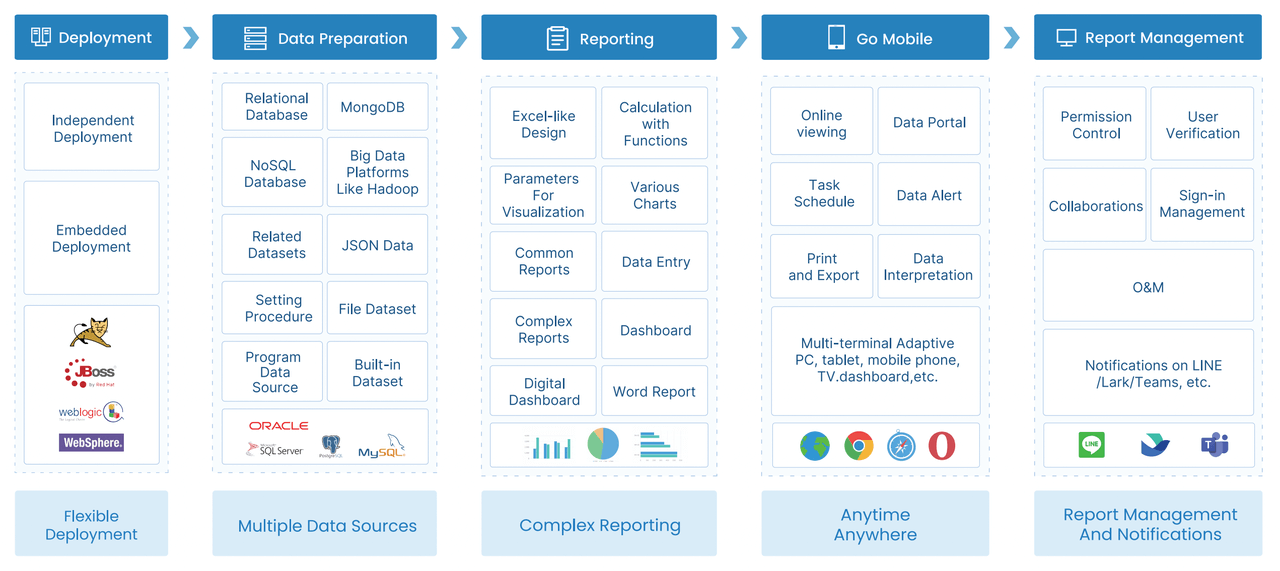
An Excel template is a solid starting point, but manual expense reporting becomes difficult once submission volume increases, approvals spread across departments, and leadership asks for real-time spend visibility. Building dashboards, consolidating files, validating entries, and monitoring KPIs manually takes far more effort than most teams expect.
Building this manually is complex; use FineReport to utilize ready-made templates and automate this entire workflow.
With FineReport, teams can move beyond static spreadsheets and build a centralized reporting process for:
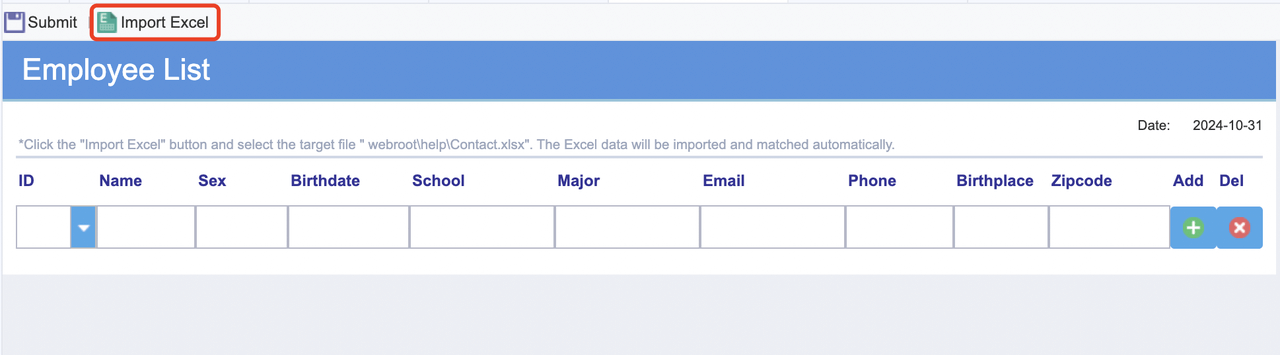
Expense submission and standardization
Automated calculations and validation
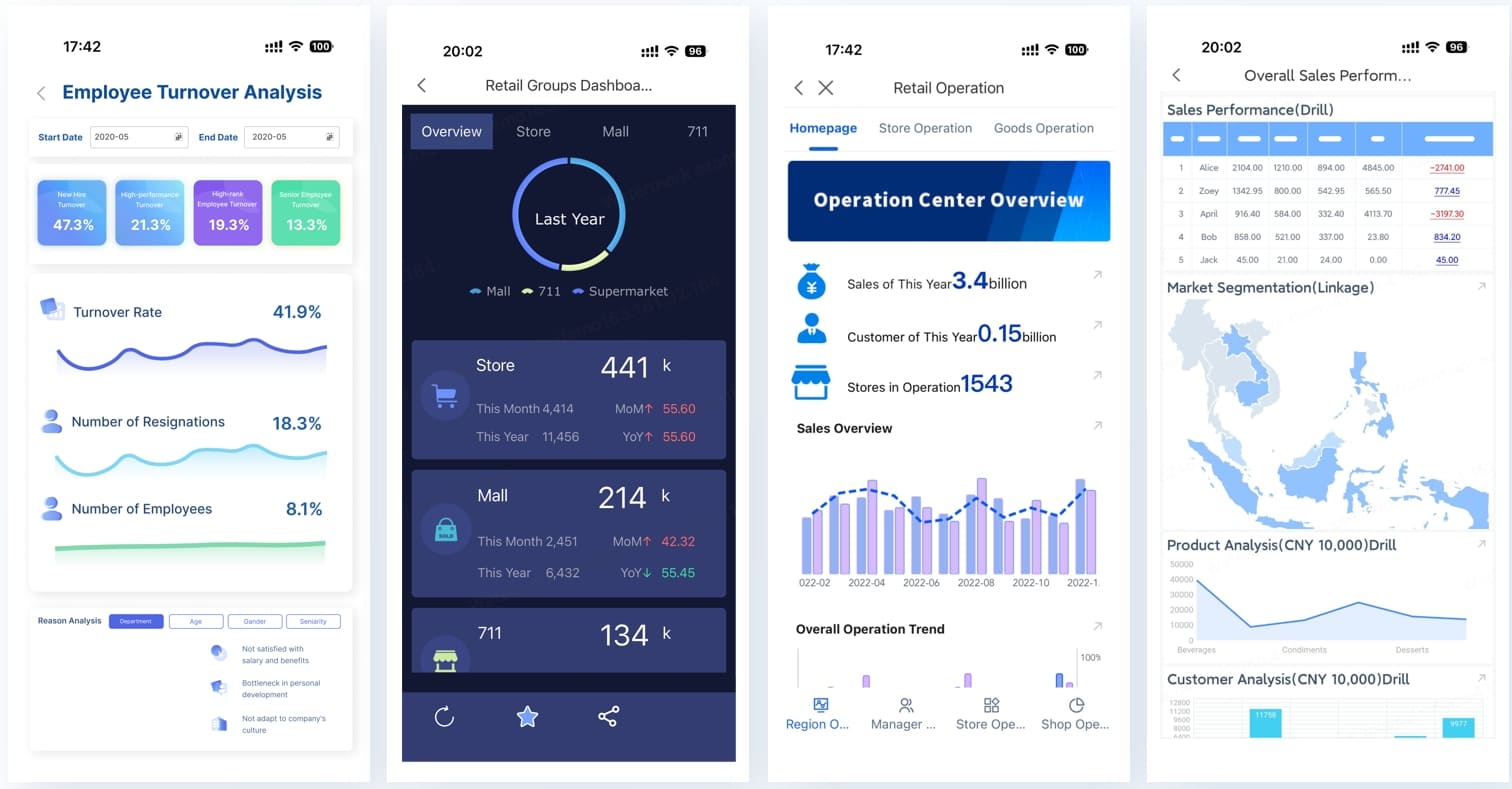
Department and project-level dashboards
Approval tracking
Monthly and yearly spend analysis
Ready-to-use visual templates for management reporting
Get Ready-to-Use Dashboard Templates in Fine Gallery
For enterprise decision-makers, the advantage is not just better reporting. It is operational control. Instead of relying on disconnected files and manual consolidation, you get governed templates, faster approvals, and dashboards that leadership can actually use.
If your current Excel process still works, standardize it now. If it is starting to break under volume, approvals, or reporting complexity, that is your signal to modernize.
A solid Excel expense report should include employee details, reporting period, expense date, vendor, description, category, amount, tax, receipt status, and approval fields. These fields make reimbursement reviews faster and help maintain accurate records.
Start by defining your reimbursement policy, then build a sheet with clear headers, line-item rows, and total formulas. Add dropdowns, receipt tracking, and approval sections so the template matches your real workflow.
Excel works well for small teams or departments with simple approval processes and manageable report volume. If submissions become frequent or complex, manual updates and review delays can become harder to control.
Use a clean layout, standard categories, consistent formatting, and automatic totals for tax and reimbursement amounts. Requiring receipt status and business purpose notes also reduces back-and-forth during approvals.
The main limits are manual data entry, formula errors, version control issues, and slower approval tracking as volume grows. Excel is useful as a starting point, but larger teams often need more automation and visibility.
Product Trial
FineReport
Pixel-perfect reports · Interactive dashboards · Easy data entry · Digital twins