
Creating a Concur expense report is one of the most important routine tasks for employees who travel, entertain clients, or submit reimbursable business costs. Done correctly, it speeds up reimbursement, reduces back-and-forth with finance, and keeps your company compliant with internal policy. Done poorly, it leads to rejected claims, approval delays, and extra admin work for both employees and managers.
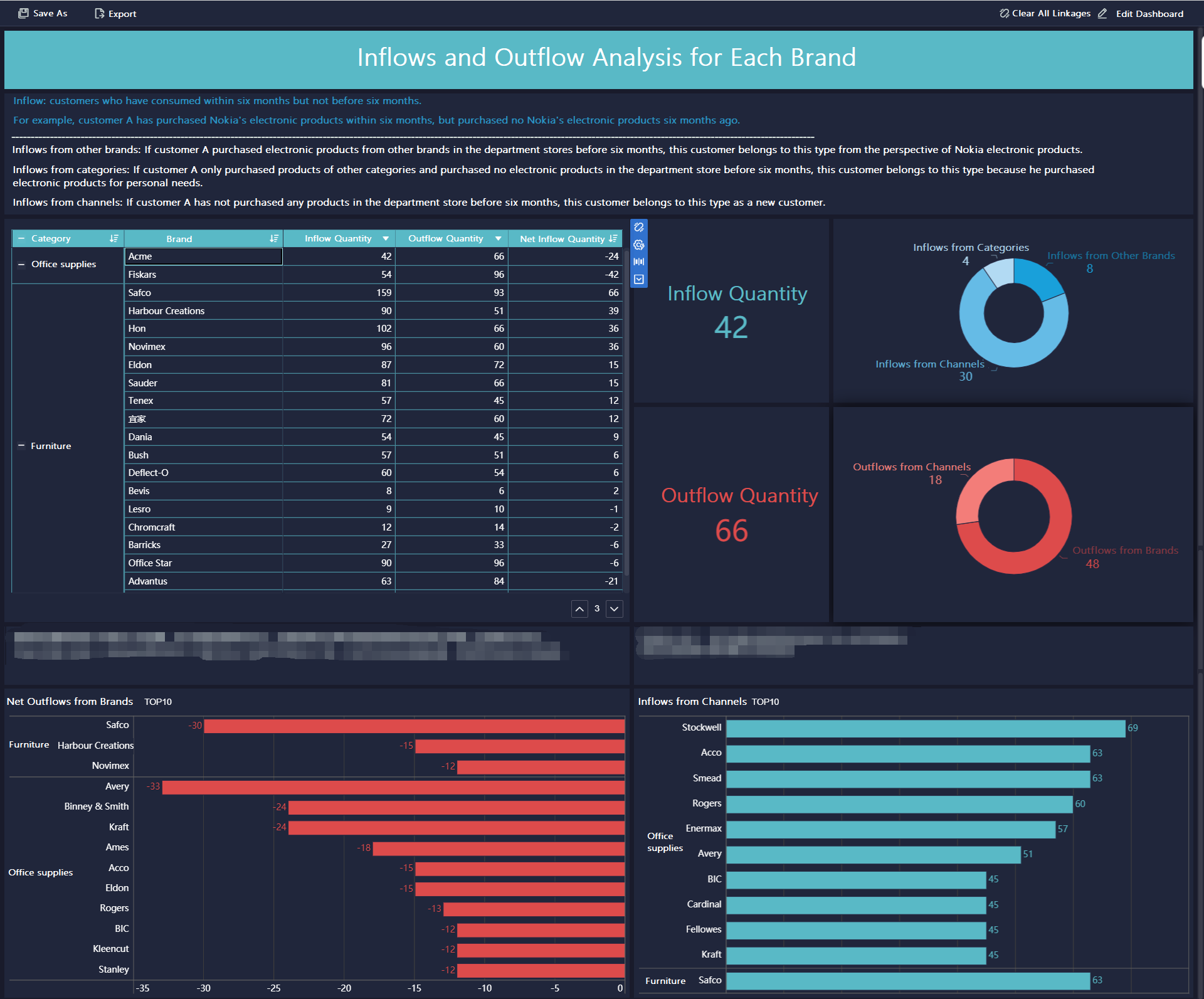
All reports in this article are built with FineReport
What a Concur Expense Report Is and When You Need One
A Concur expense report is the formal record you create in SAP Concur to group together business-related expenses for review, approval, and reimbursement. Instead of submitting expenses one by one, employees typically organize multiple charges into a single report tied to a business trip, client meeting, project, or reporting period.
In practical terms, the report acts as the container for your expense transactions. It holds essential details such as the report name, business purpose, expense dates, receipts, cost allocation, and notes required by company policy.
When employees should create a new report
You should usually create a new report when:
- You have completed a business trip
- You need reimbursement for out-of-pocket expenses
- Your company requires monthly or periodic submissions
- You need to separate expenses by project, department, event, or client
- Your previous report has already been submitted and approved
In many organizations, employees create the report first and then attach expenses to it. In others, card transactions may appear automatically in Concur and can be added later. The right timing depends on company workflow, but the core principle is simple: create a new report when the expenses belong to a distinct business purpose or reporting cycle.
When to add expenses later instead of creating another report
You may not need a new report if:
- The expense belongs to an open report for the same trip or purpose
- Additional card transactions are still feeding into the system
- You are waiting on a receipt for an expense already associated with that report
- Your finance team wants all related expenses grouped together
This helps avoid fragmented submissions, duplicate approvals, and confusion during reconciliation.
What information to prepare before you begin
Before creating your Concur expense report, have the following ready:
- Business purpose: Why the expense was incurred
- Travel or transaction dates: Start and end dates for the report
- Receipts: Digital copies or photos of required receipts
- Expense details: Merchant, amount, currency, tax, and category
- Cost center or department: If your company requires charge allocation
- Project or client code: If expenses must be tied to billable work
- Approver information: If manual approver selection is required
Key Metrics (KPIs) and Core Elements to track in an expense reporting process
For employees and finance teams, these are the most important operational elements behind an effective Concur expense report workflow:
- Report submission cycle time: The time from expense incurred to report submission. Shorter cycles reduce missing receipts and forgotten details.
- Approval turnaround time: The number of days it takes for managers or finance to approve a report.
- Exception rate: The percentage of reports flagged for policy violations, missing data, or receipt issues.
- Receipt compliance rate: The percentage of expense lines with valid supporting documentation attached.
- Rework rate: How often reports are returned for correction before approval.
- Expense categorization accuracy: Whether expenses are assigned to the correct type, such as meals, lodging, transportation, or mileage.
- Policy adherence rate: The percentage of submitted expenses that align with internal travel and reimbursement rules.
- Reimbursement speed: The time from final approval to employee reimbursement.
How to Create a Concur Expense Report
Creating a Concur expense report typically follows a straightforward sequence: start a new report, enter report details, add expenses, review for issues, and submit for approval. The exact labels may differ slightly by company configuration, but the process remains largely the same.
Start a New Report in Concur
After logging into Concur, navigate to the Expense section or your expense dashboard. Most users will see a button or menu option labeled something like Create New Report, New Expense Report, or Create Report.
Once selected, Concur opens a new report form where you can enter the header details.
Common fields you may need to complete include:
- Report name
- Business purpose
- Start date and end date
- Report or trip type
- Department or cost center
- Employee ID or organizational unit
- Travel destination, if relevant
- Custom company fields, depending on policy
If your company uses a corporate card feed, you may also see available card transactions waiting to be assigned after the report is created.
Enter Report Details Correctly
This step matters more than many employees realize. Accurate report details are one of the biggest factors in preventing approval delays.
Pay special attention to the following fields:
- Report name: Use a clear naming convention, such as "Chicago Client Visit - March 2026" or "April Field Travel Expenses"
- Business purpose: Briefly explain the reason for the expenses
- Date range: Ensure it matches the actual travel or spending period
- Cost center or department: Select the correct organizational owner of the expense
- Project, client, or event code: Add these if your organization requires cost tracking
A vague report name like "Travel Expenses" may create confusion for approvers. A precise report description gives finance and managers enough context to approve quickly and audit later if needed.
Add Expenses to the Report
Once the report header is saved, add your individual expense lines. In a typical Concur expense report, there are two primary ways to do this:
Import card transactions
If you used a corporate card connected to Concur, eligible transactions may appear automatically in your available expenses. You can then:
- Select the imported transactions
- Move or assign them to the current report
- Review the merchant, date, and amount
- Confirm or update the expense type
- Attach receipts if required
Add out-of-pocket expenses manually
For personal card purchases or cash expenses, you usually need to enter them manually. This often includes:
- Clicking Add Expense
- Choosing the correct expense type
- Entering the transaction date
- Inputting the amount and currency
- Adding the vendor or merchant
- Attaching a receipt
- Including a business note if company policy requires explanation
Typical expense categories include:
- Airfare
- Hotel
- Meals
- Taxi or rideshare
- Mileage
- Parking
- Office supplies
- Entertainment
- Internet or communication charges
Accuracy here is critical. Misclassified expenses are one of the main reasons reports are flagged by finance teams.
Review and Fix Common Errors Before Submission
Before you submit your Concur expense report, take a few minutes to review system alerts and validate the supporting information. This step saves time and reduces the chance of the report being sent back.
Check Policy Warnings and Missing Information
Concur typically identifies issues through alerts, warnings, or error messages. These may appear at the report level or on individual expense lines.
Common issues include:
- Missing receipts
- Incomplete required fields
- Invalid expense type selection
- Out-of-policy meal or hotel amounts
- Duplicate expense entries
- Missing business purpose notes
- Incorrect tax or allocation fields
It is important to understand the difference between warnings and errors:
- Warnings usually indicate a policy concern or something unusual, but they may still allow submission
- Errors usually block submission until the required information is corrected
If an expense is flagged, open the line item and review every field carefully. In many cases, the fix is simple: attach the receipt, update the category, or complete the missing comment.
Verify Totals and Expense Categories
Before moving forward, confirm that:
- Each expense is in the correct category
- Receipt amounts match the entered values
- Dates align with the actual transaction or trip
- Currency conversions, if any, are accurate
- Business justification is clear and complete
- The total report amount looks correct
This final validation is especially important when a report contains multiple expense types or transactions imported from different sources.

Submit the Report for Approval
Once the report is complete and free of blocking errors, the next step is submission. This is where your report officially enters the approval workflow.
Complete the Final Review
Before clicking submit, perform one last check:
- Confirm all expenses are attached to the right report
- Make sure required receipts are uploaded
- Verify notes for exceptions or unusual expenses
- Review totals one more time
- Check cost center, department, or project coding
- Confirm the approver if your company allows or requires approver selection
For employees who submit reports infrequently, this final review is often the difference between same-day approval and a returned report.
Submit and Track Report Status
After submission, your Concur expense report typically moves through one or more workflow stages:
- Submitted
- Manager approved
- Finance under review
- Sent back to employee
- Approved for payment
- Reimbursed or processed
You can usually monitor this in the report list or status dashboard inside Concur. If the report is returned, open the comments or audit notes, make the requested corrections, and resubmit promptly.
For smoother processing, do not wait too long after the report is returned. Delays can affect month-end close timelines, reimbursement cycles, and policy deadlines.
Tips to Make Future Concur Reports Easier
Employees who handle expenses regularly can dramatically reduce reporting time by building better habits. As a consultant, I recommend focusing on a few disciplined practices rather than trying to fix everything at submission time.
1. Save receipts immediately
Capture receipts the moment you receive them. Waiting until the end of a trip often leads to missing documentation and inaccurate entries.
Best practice:
- Photograph receipts on the same day
- Store digital copies in one folder
- Match receipts to card transactions as they appear
2. Create reports regularly
Do not let expenses pile up for weeks or months. Frequent reporting improves accuracy and reduces forgotten details.
A practical rhythm is:
- After each business trip
- Weekly for frequent travelers
- Monthly for low-volume users
3. Follow company expense policy closely
Many report delays are caused by avoidable policy issues. Know your company’s rules for:
- Receipt thresholds
- Daily meal limits
- Travel class restrictions
- Required approvals
- Non-reimbursable categories
Employees who understand policy submit faster and get reimbursed faster.
4. Use consistent naming and categorization
Clear report names and accurate categories help managers approve quickly and help finance teams reconcile data later.
For example:
- Good report name: "Q2 Regional Sales Visit - Dallas"
- Weak report name: "Business Expenses"
5. Review before you submit, not after it is rejected
A one-minute self-audit before submission prevents much larger delays later. Check totals, receipts, policy alerts, and business purpose every time.
Build a Smarter Expense Reporting Workflow with FineReport
If your organization only needs to know how to create a Concur expense report, the steps above will get employees through the process. But if you are an operations leader, finance manager, or IT decision-maker, the bigger issue is not just report entry. It is visibility, compliance, and workflow control at scale.
Building this manually is complex; use FineReport to utilize ready-made templates and automate this entire workflow.
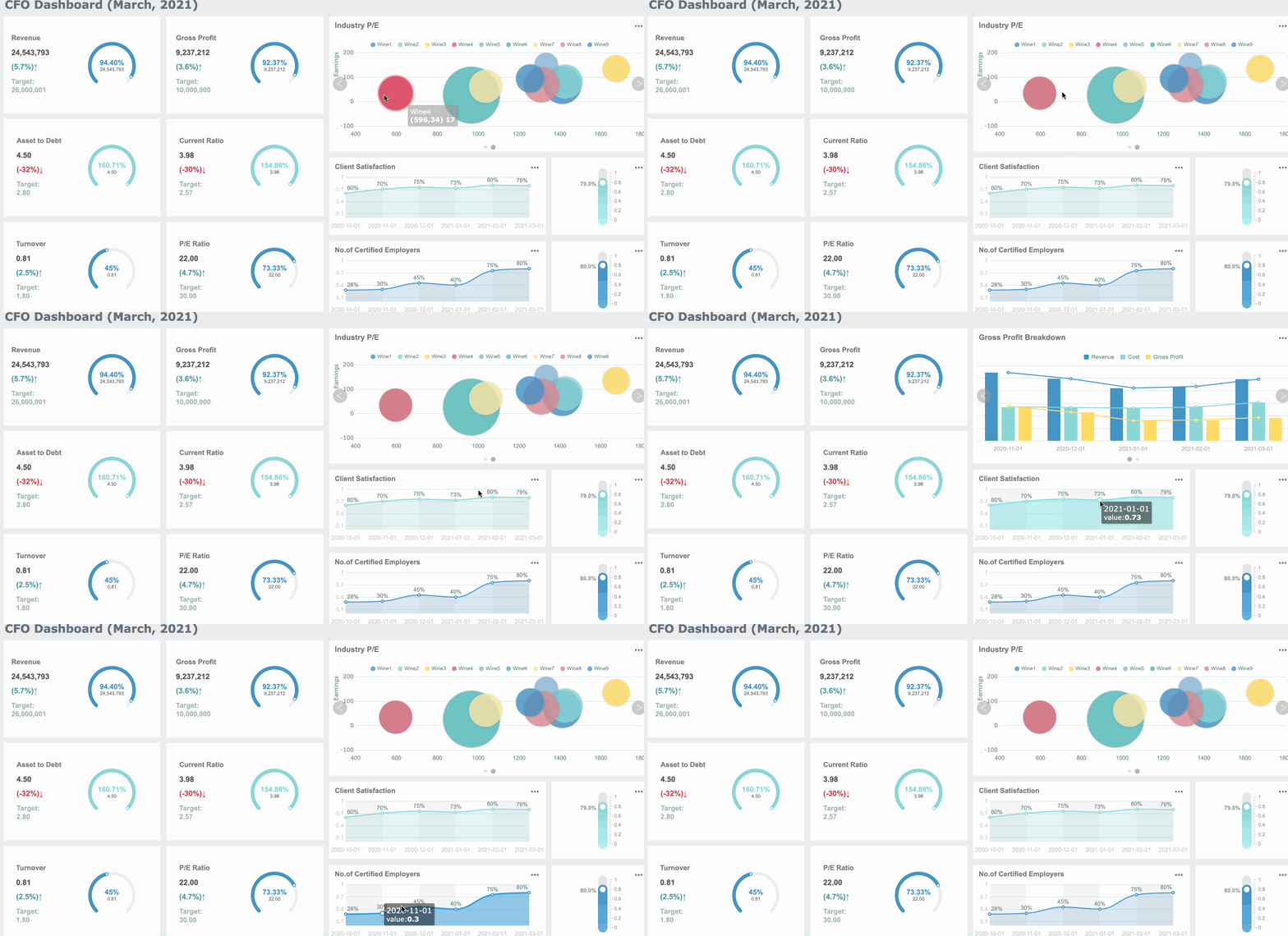
With FineReport, enterprises can build dashboards and reporting layers around expense operations to monitor:
- Report submission volume by department
- Approval bottlenecks by manager
- Returned report frequency
- Receipt compliance trends
- Out-of-policy expense patterns
- Reimbursement turnaround time
- Employee adoption and reporting behavior
That means instead of reacting to delayed or inaccurate reports, you can proactively identify where the process is breaking down and improve it.
FineReport is especially valuable when companies want to turn scattered expense data into operational insight. Finance teams can standardize reporting logic, managers can track approval workload, and leadership can see where process delays affect employee satisfaction and close efficiency.
For enterprise teams, that is the real upgrade: not just submitting expense reports, but running a measurable, optimized expense management process.
FAQs
Create a new report when your expenses relate to a separate trip, business purpose, project, client, or reporting period. If the expenses still belong to an open report, you can usually add them there instead of starting another one.