You can make a crm analytics dashboard in Salesforce fast with easy steps. FineBI from FanRuan lets you link your crm data and make clear dashboard pictures. You get helpful ideas that help you make better business choices. Analytics tools make it simple for anyone to use and get.
Prerequisites for CRM Analytics Dashboard
You need to set up some things before you build your CRM analytics dashboard. This setup helps you get the right sales information. It also makes your dashboard simple to use.
Salesforce Access & Permissions
You must have the right access in Salesforce to use your crm data. Make sure you can see, download, and connect your data. If you work with others, check that everyone has the right roles. This keeps your data safe. It also lets you choose who can see or change things.
Data Preparation with FineBI
Good data is important for a strong crm analytics dashboard. You should use a tool like FineBI from FanRuan. FineBI helps you link, clean, and sort your crm data. Clean data means your dashboard will show the right results. FineBI lets you join data from many places, fix mistakes, and pick the right fields. This makes your sales information better and more helpful.
Clean data helps you trust your dashboard.
Consistent data lets you compare results over time.
Integrated data gives you a full view of your crm work.
Required Tools & Integration
You need some tools to make your dashboard. First, you need Salesforce for your crm data. Next, you need FineBI to get your data ready and make charts. FineBI links to Salesforce and other systems. This lets you bring all your crm data together. This helps you not miss any important facts. It also lets you use smart tools like predictive modeling and AI for better ideas.
Checklist for getting started:
Access to Salesforce with the right permissions
FineBI installed and connected to your crm data
Clean and organized data sets
A clear idea of which metrics matter most for your business
When you set up these things, your crm analytics dashboard will be ready to help you.
Build Your CRM Analytics Dashboard
It is easy to make crm analytics dashboards in Salesforce if you follow steps. FineBI helps you connect your crm data and make charts. You can also make your dashboard fun to use. This guide shows you how to use the dashboard designer. You will learn to add pipeline widgets and set up global filters for better ideas.
Access Salesforce Analytics
First, open Salesforce Analytics Studio. This is where you make your crm analytics dashboard. Here are the steps:
Log in to Salesforce and open Analytics Studio.
Click "Create" at the top.
Pick "Dashboard" from the menu.
Choose a template or start with a blank dashboard.
Use the dashboard designer to add charts, tables, and pipeline widgets.
Pick the opportunities dataset or other crm data you want to show.
Change chart types, labels, and colors to fit your needs.
Save your dashboard with a name that makes sense.
Share your dashboard with your team or certain people.
Try more by adding pages or using the advanced editor.
Connect Data Sources via FineBI
FineBI makes it easy to bring all your crm data together. You can connect to Salesforce, databases, or files. This step is important because you need the right data for your charts and pipeline widgets.
Open FineBI and go to the data connection area.
Pick Salesforce or another crm source.
Connect to the opportunities dataset or other data you need.
Use the create query tool to pick fields like sales, leads, or pipeline by close date.
Set updates so your dashboard always shows new data.
FineBI works with many data types. You can join tables, clean data, and make sure your crm analytics dashboard uses the best information.
Create Dashboard & Add Widgets
Now you can build your crm analytics dashboard with the dashboard designer. FineBI and Salesforce let you drag and drop charts and pipeline widgets onto your dashboard.
Click "Add Component" to put in a chart, table, or pipeline widget.
Drag fields from the opportunities dataset into the chart area.
Use the create query tool to make custom views, like pipeline by close date or sales by region.
Add more pipeline widgets to track different parts of your crm process.
Mix chart types, like bar charts, pie charts, and line charts, for a full view.
Customize Layout & Filters
A good crm analytics dashboard is easy to read and use. You can change the layout, add global filters, and make widgets interactive. This helps everyone get the most from your dashboard.
Use groups of widgets and pages again to save time.
Initial Selections and Global Filters
Let viewers change data without editing the dashboard.
Interactive Widgets
Let users sort and see extra info for deeper analysis.
Dynamic Dashboards
Show data based on user roles, so each person sees what matters to them.
Add global filters for date, region, or campaign.
Use global filters so users can switch between different crm views.
Set up filters for the opportunities dataset, like pipeline by close date.
Make pipeline widgets respond to global filters for real-time updates.
Arrange charts and pipeline widgets so everything is clear and easy to follow.
Save & Share Dashboard
When your crm analytics dashboard looks good, save it. Give it a name that matches what it is for, like "Sales Pipeline Overview" or "CRM Performance Dashboard." Sharing is easy in both Salesforce and FineBI.
Click "Save" in the dashboard designer.
Pick who can see or edit the dashboard.
Use sharing settings to control who can access it.
Send a link or add the dashboard to your crm homepage.
Change sharing as your team grows or changes.
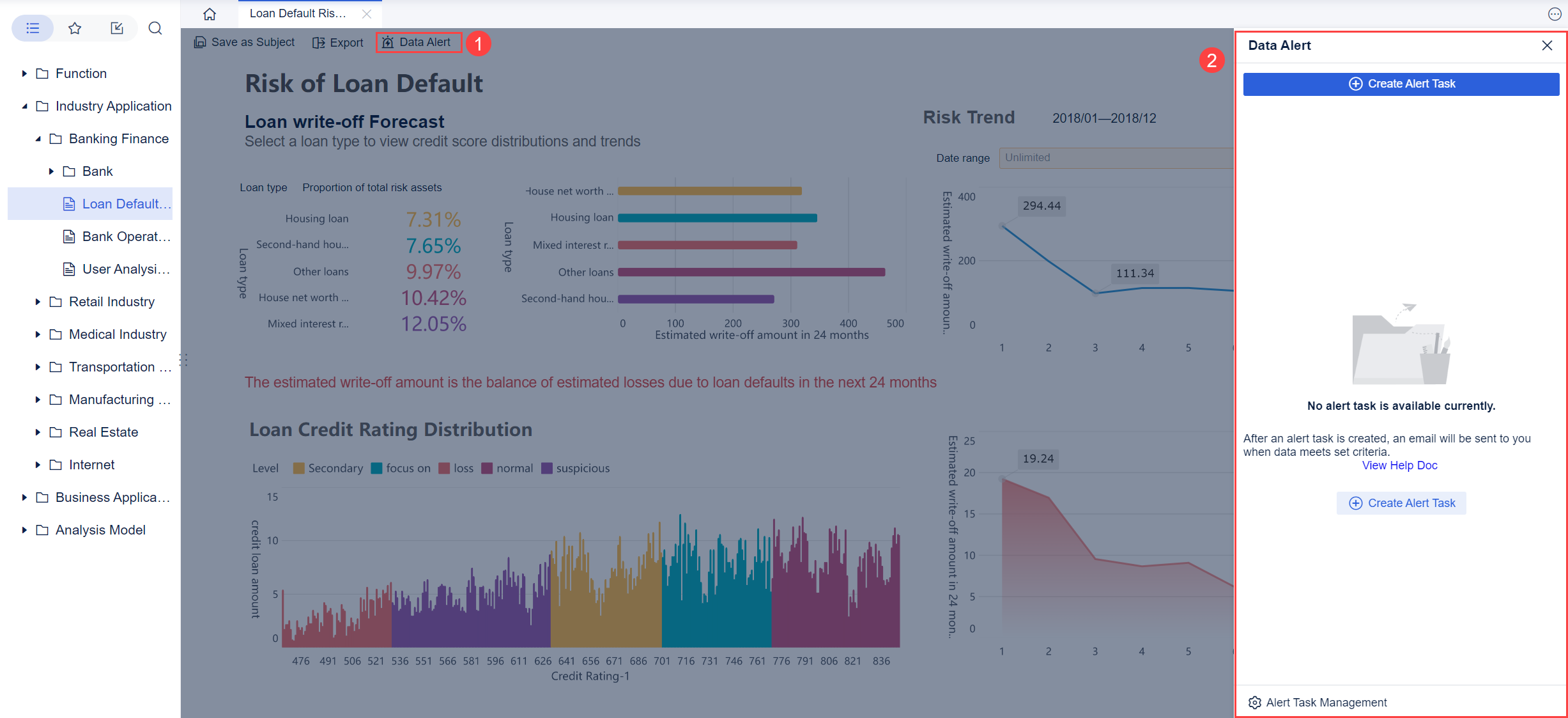
You can also export charts or the whole dashboard for meetings or reports. FineBI lets you set up alerts, so you know when important numbers change.
By following these steps, you can make crm analytics dashboards that help your team track sales, find trends, and make better choices. Use the dashboard designer, global filters, and pipeline widgets to make dashboards that work for everyone.
Best Practices for CRM Analytics Dashboard
Design for Clarity & Usability
You want your crm dashboard to be simple to read and use. Put the most important numbers at the top left. Leave space between items to keep things neat. Take away anything that does not help. Add a filter for date or sales stage so users can find what matters. Filters help everyone get the right data fast. FineBI has an easy interface, so you can make dashboards without needing IT help.
Choose Effective Visuals
Pick the best charts for your crm dashboard. A funnel chart shows how leads move through each stage. A waterfall chart helps you see where deals slow down. Bar charts compare sales by team or product. Gauge charts show progress toward goals. Use color to highlight important numbers. The table below shows which charts work best for different crm needs:
Visualization Type
Purpose
Example Use Case
Waterfall Chart
Shows pipeline speed and bottlenecks
Deal flow through sales stages
Funnel Chart
Tracks lead conversion and drop-off
Lead qualification
Bar Chart
Compares sales cycle by rep or product
Coaching and finding gaps
Gauge Chart
Quick view of quota attainment
Team or individual performance
Add a filter so users can switch between products or regions. This makes your dashboard more flexible.
Enable Actionable Insights
Your crm dashboard should help you find useful ideas. Start with a summary of what happened. Add charts that explain why things happened. Use drilldowns and filters to explore patterns. Predictive analytics can show what might happen next. FineBI’s strong data tools help you prepare and analyze data fast, so you get insights quickly.
Use a filter to focus on recent sales or top performers.
Set alerts for key metrics so you never miss important changes.
Promote User Adoption
You want everyone to use your crm dashboard. Make the interface simple and clear. Share dashboards with your team and ask for feedback. FineBI lets teams work together and share ideas. The table below lists ways to help users start using analytics dashboards:
Strategy
Description
Leadership Support
Leaders encourage dashboard use and show its value.
Clear Communication
Explain the purpose and benefits to all users.
User-Friendly Interface
Make sure the dashboard is easy to use.
Gamification and Incentives
Make using the dashboard fun and rewarding.
Feedback and Improvement
Ask users for feedback and keep making the dashboard better.
When you use these best practices, your crm dashboard will give you useful ideas and help your team make better choices. Add filters, pick the right charts, and keep the layout simple for the best results.
Troubleshooting CRM Analytics Dashboard Issues
Making a crm analytics dashboard can sometimes be tricky. You might have problems with how data shows up, who can see it, or how fast it works. If you know how to fix these problems, your dashboard will stay easy and helpful.
Data Display Problems
Sometimes your crm dashboard does not show the right numbers or charts. This can happen if data does not sync, if there are dashboard limits, or if there are double records. The table below lists common problems and how to fix them:
Problem Type
Description
Solution
Data Asynchronization
Data does not match because of manual entry or sync errors.
Set up two-way sync and save events directly in crm.
Dashboard Limitations
You cannot customize or filter data as needed.
Aggregate data and embed dashboards for better visibility.
Conflicts and Duplicity
Duplicate records from different sources cause confusion.
Use custom rules to select and store crm data.
Access & Permission Errors
Sometimes you cannot see or change your crm dashboard. This happens if roles are not set up right. Make sure you have the right permissions in Salesforce and FineBI. If you work with others, check that everyone can see or update the dashboard. You can ask your admin to check roles and sharing settings.
Check your crm access before you build a dashboard.
Look at permission settings for each user.
Change sharing options if your team changes.
Performance Optimization
A slow crm dashboard can waste time and make things hard. There are some easy ways to make your dashboard faster. The table below shows ways to help your dashboard work better:
Optimization Technique
Description
Use filtered reports
Only show needed crm records for faster results.
Limit report timeframes
Focus on current quarter or month.
Index filtered fields
Make filters work faster by indexing key fields.
Archive unused dashboards
Remove old dashboards to improve speed.
Monitor refresh times
Check how long dashboards take to update.
Schedule refreshes
Set updates based on how often crm data changes.
If you do these things, you can fix most crm dashboard problems. Your dashboard will stay clear, safe, and quick for everyone.
You can make a CRM analytics dashboard in Salesforce by using simple steps. FineBI from FanRuan lets you link your data and find helpful ideas. The table below explains why analytics are important for business success:
Evidence Type
Description
Case Study
71% of leaders think data analytics is very important for business success.
Statistical Evidence
The analytics industry will be worth USD 346.33 billion by 2030.
Keep learning new things and practice your skills often. Training, checking your data, and updating your system help you get the best results from your dashboard.
Product Trial
FineReport
Pixel-perfect reports · Interactive dashboards · Easy data entry · Digital twins
Access a wealth of case studies, industry insights, and solution guides to accelerate digital transformation.
FAQ
How do you connect Salesforce data to FineBI?
You open FineBI, go to the data connection area, and choose Salesforce. You enter your login details. FineBI will guide you to pick the data you want to use for your dashboard.
Can you use FineBI without coding skills?
Yes! FineBI uses a drag-and-drop interface. You do not need to write code. You can build dashboards and charts by clicking and moving items.
What types of charts can you add to your CRM dashboard?
You can add bar charts, pie charts, funnel charts, waterfall charts, and gauge charts. FineBI lets you pick the best chart for your data.
How do you keep your dashboard data up to date?
Set up automatic data refresh in FineBI. This keeps your dashboard current. You can also schedule updates so your team always sees the latest numbers.